Overview
Use the Top 10 Vendors Map in Mercury Network® to find and compare nearby appraisers when manually assigning appraisal orders. The interactive map ranks vendors and displays performance and order history data, helping you select the right vendor faster. This feature is especially useful when double-blind ordering and automatic assignment are turned off.
How to Select a Vendor
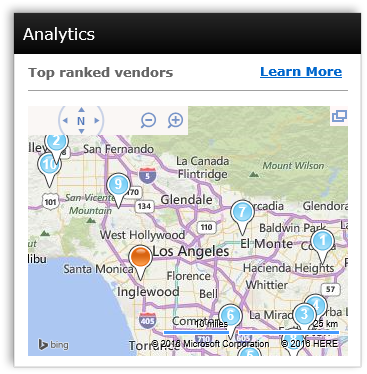
When selecting a vendor, use the map to view blue pins that show vendor locations near the appraisal order’s subject property.
Select the Expand icon in the upper-right corner of the map to open a larger view.
How to View Available Appraisers
The 10 blue pins represent the first 10 vendors listed in the selected tab. Choose a tab to view a different group of available appraisers:
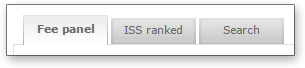
Fee Panel: View vendors in your fee panel who can complete the selected product at the subject property location.
ISS Ranked: View vendors from the Mercury Network fee panel ranked according to your Intelligent Selection System (ISS) settings.
Search: Find vendors using criteria you enter.
The vendor list updates based on the selected tab, and the map displays pins for the first 10 vendors in the results.
Why Fewer Than 10 Vendors May Appear on the Map
The map may show fewer than 10 vendor pins for the following reasons:
Multiple top-ranked vendors share the same address.
A vendor’s address could not be located on the map.
A vendor is more than 20 miles from the subject property. Select the Expand icon to view vendors outside this radius.
How to Review and Assign an Appraiser from the Map
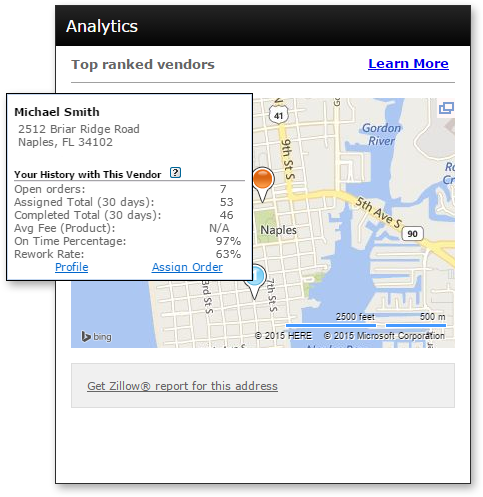
Point to a blue vendor pin to view vendor details.
Select Profile to open the vendor’s Mercury Network profile.
Select Assign Order to assign the current appraisal order to the vendor.
When you point to a vendor your organization has previously used, the Your History with This Vendor section displays transaction data for that vendor. The data includes orders placed by other Mercury Network users in your organization.
How to Interpret Vendor Performance and Order History
Review the following metrics in the Your History with This Vendor section:
Open Orders: Number of orders your organization currently has open with the vendor.
Assigned Total (30 days): Total number of orders for any product assigned to the vendor during the past 30 days.
Completed Total (30 days): Total number of orders for any product the vendor completed for your organization during the past 30 days.
Avg Fee (Product): Average fee your organization paid the vendor during the past year for the product selected on the current order. If the vendor is new or has not received an order for the selected product, this value displays as N/A.
On-Time Percentage: Percentage of orders for the selected product that the vendor completed on time for your organization during the past year.
Rework Rate: Percentage of completed orders for any product that required revisions from the vendor during the past year.
Outcome
After using the Top 10 Vendors Map, you will be able to compare available vendors based on proximity, ranking, and past performance with your organization. You will know how to view vendor locations, access profiles, review historical metrics, and assign orders directly from the map, helping you select the most appropriate vendor for each assignment with greater confidence.