Overview
The Find feature in the Fee Panel helps you quickly locate vendors who meet specific criteria, such as coverage area, name, or other identifying details. Instead of manually scanning long vendor lists, you can use targeted search terms to narrow results across both the Appraiser/Agent and AMC/Firms tabs. This article explains how to use the Find tool to efficiently search within your existing Fee Panel.
If you're looking for a vendor in your fee panel who fits certain criteria, for instance, an appraiser who provides coverage for a specific county, you can find that vendor using the Find button. This will help you find vendors on your Appraiser/Agent and AMC/Firms tabs in your fee panel, and this is how it works:
Click Find on the toolbar.
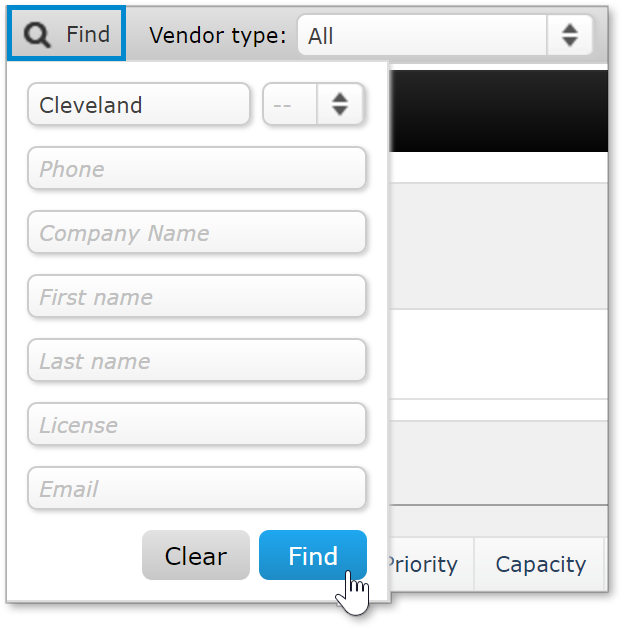
In the search dialog, enter your search terms, then click Find. You can enter partial search terms. For instance, if you don't remember the exact spelling of the county name, try entering the first few characters, then click Find to see the results.
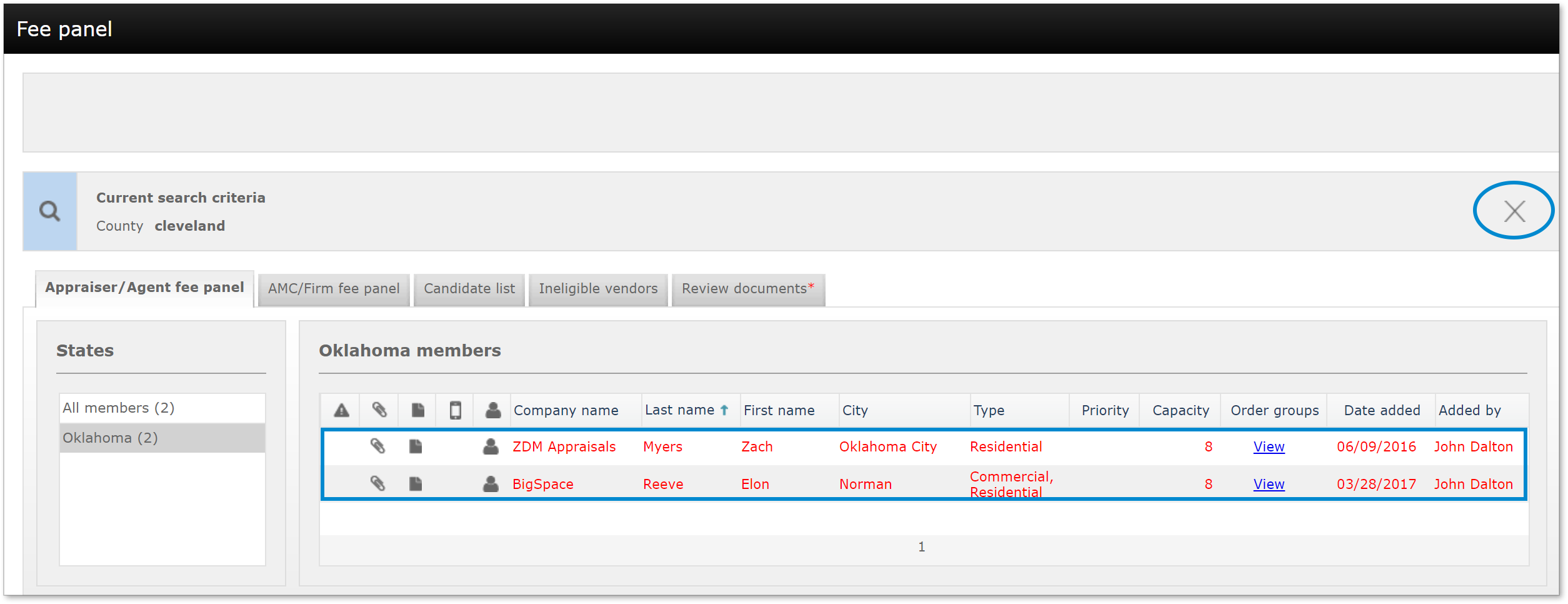
Below, the search results will be displayed, and you can interact with them as with any other vendor on your fee panel.
When you're done with the search results, click the X on the right of the search terms to clear the results.
Outcome
After completing these steps, you will be able to search your Fee Panel using partial or complete search terms and interact with the results just as you would with any other vendor listing. You will also know how to clear search results and return to the full vendor list, making it easier to manage and locate vendors as needed.