Overview
Field constraints and contact method settings help ensure accurate, complete data is entered on your order forms. By controlling what information can be entered into specific fields and requiring certain contact details, you can reduce errors, prevent delays, and streamline the ordering process for clients and brokers.
Field constraints let you define the data that can be entered into a given field, which avoids data entry errors and eliminates delays and hassles later in the process. There are several options for setting the field constraints, so you can choose the best method for the type of data to be entered in the field.
Here are the types of field constraints available:
None - anything can be entered in the field
Basic Field Validation
Set a minimum and/or maximum number of characters. If the field should contain a specific number of characters, set both the minimum and maximum to that number.
Allow any type of characters - All types of characters can be entered in the field.
Only allow numbers - Only numbers can be entered in the field.
Only allow letters - Only letters can be entered in the field.
Only allow these characters - Only the characters you type here can be entered in the field.
Advanced Field Validation - Use a regular expression (regex) to set up an advanced validation for the field. Using this feature requires that you understand how to formulate a regular expression. There are many regex tutorials available on the Internet, but here's one of the most popular:
After you've configured your field constraints, click Test Validation to see if the validation is working as intended. When you do, a field appears for you to enter some test data. Enter the data and click Test to validate the data using your settings.

Configure Contact Methods
Customize your online order form to require specific contact details, such as borrower's e-mail address, to avoid wasted time and unnecessary callbacks. Configuring contact methods here allows you to choose the default contact method types displayed on your order form. This allows you to customize your preferred contact methods, and require contact information that must be entered when your clients/brokers place orders.
To configure your contact methods:
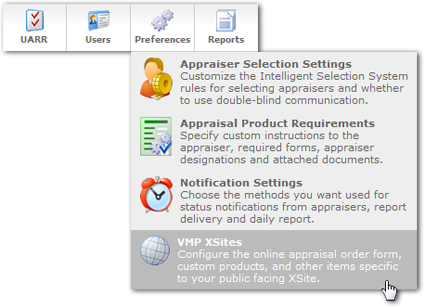
Click Preferences in the top toolbar and select VMP XSites.
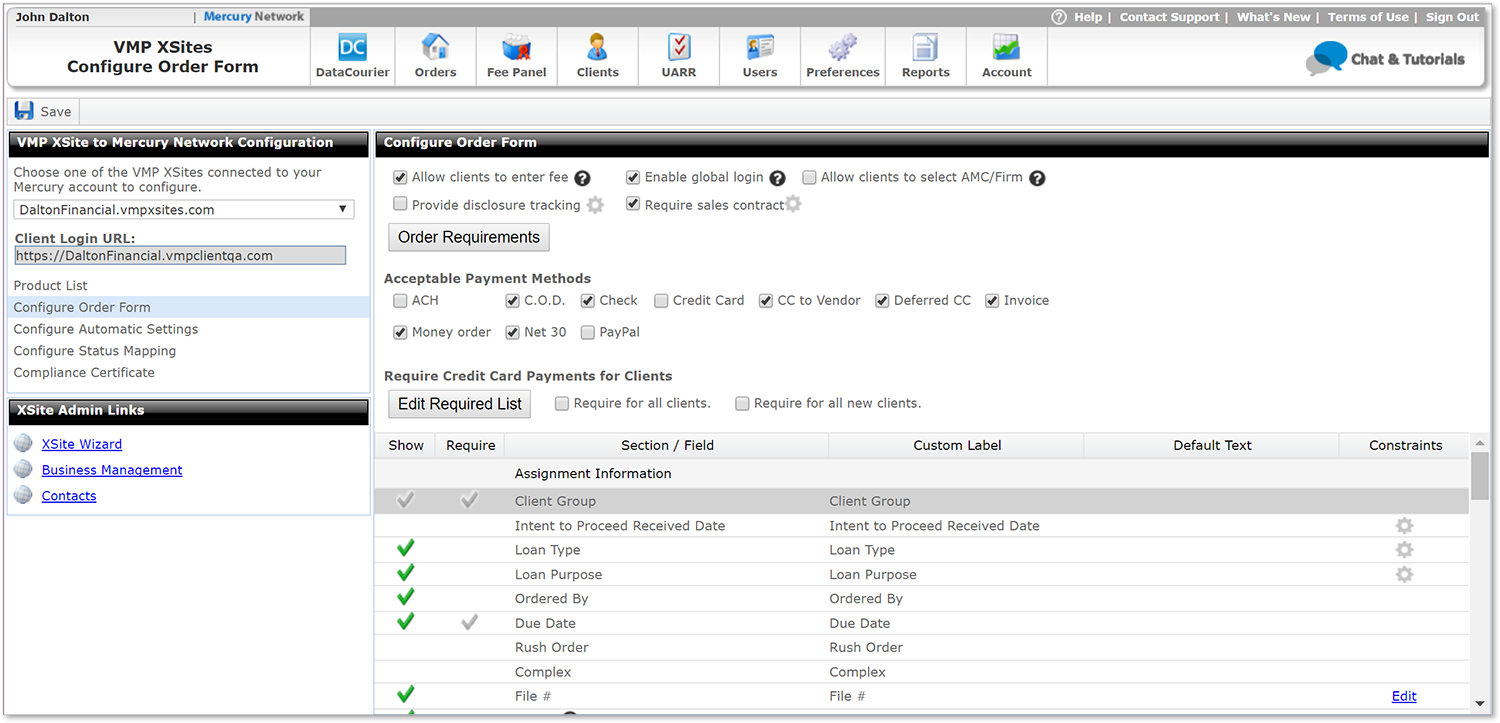
Click Configure Order Form on the left.
Click Configure Order Form on the left.
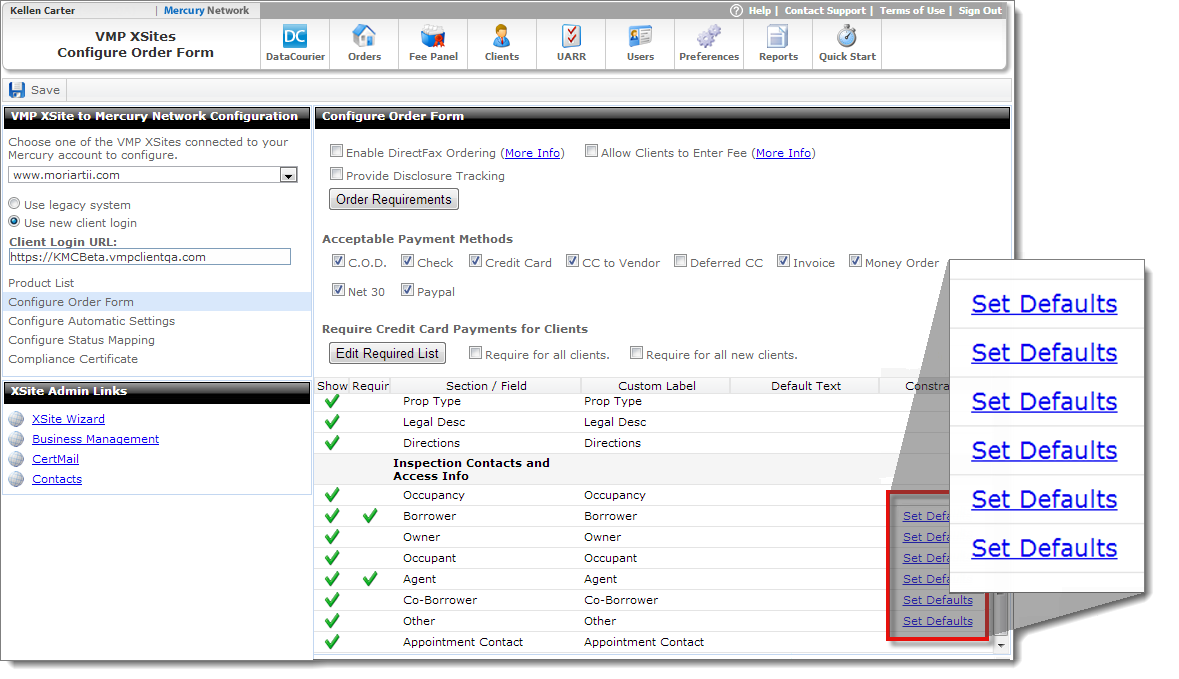
Scroll to the bottom of the list and locate Inspection Contacts and Access Info.
Click Set Defaults beside the contact you want to configure.
Scroll to the bottom of the list and locate Inspection Contacts and Access Info.
Click Set Defaults beside the contact you want to configure.
In the window that appears, you can configure the contact methods in one of two ways:
Select the contact method from the drop-down menu to choose what is displayed by default on your order form. If you don't mark the contact as required, it can be changed by the client when placing the order.
Select the contact method and check the Required box to require the field to be completed before the client can place the order. If a contact method is set as Required, it must be filled out before the order is placed. Additionally, the contact method drop-down menu is grayed out on the order form and cannot be changed by the client.

Click OK to save your changes, and click Save on the upper left of the Configure Order Form section.
Outcome
After configuring field constraints and contact methods, you will be able to enforce valid data entry, require specific contact information, and customize default contact options on your order forms. This helps improve data quality, minimizes follow‑up issues, and ensures orders are submitted with the information needed to move forward efficiently.