Overview
Mercury Network® allows you to track and manage payment status for appraisal orders by marking orders as paid. This feature helps keep payment records up to date and gives you the option to share payment details with vendors for transparency. This article explains how to mark multiple orders as paid, update payment information, and use related tools such as exporting or uploading payment data.
How to Mark Orders as Paid
Use the Payments tool in Mercury Network® to mark one or more orders as paid. You can also choose whether to share the payment information with the appraiser.
How do I enable the Mark as Paid option?
Use the Find Orders tool or select a folder from the folders list to display the orders you want to update.
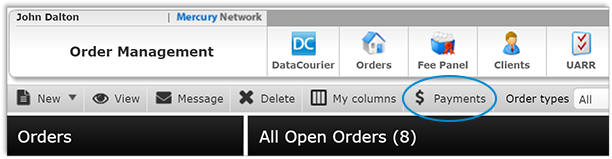
Select Payments on the toolbar.
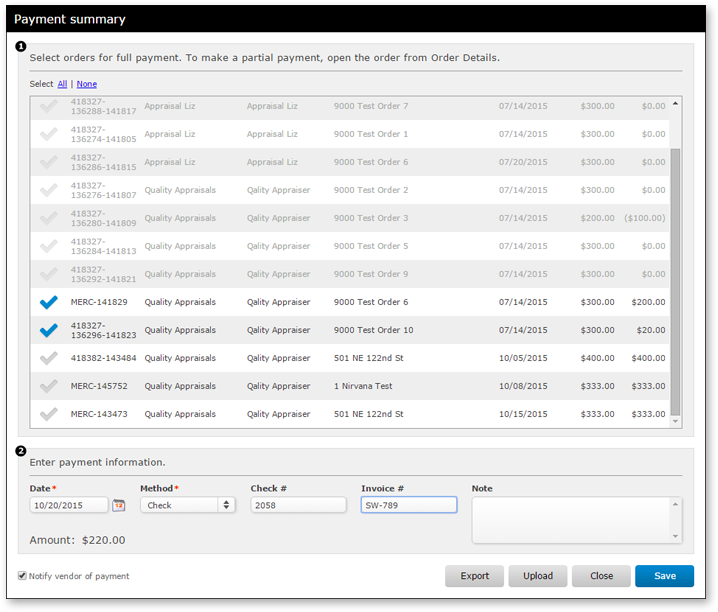
Note: The Payment summary dialog displays the orders currently visible in the orders grid. Unpaid orders are available for selection, while paid orders appear disabled.
Select one or more unpaid orders.
Enter the payment information to apply to the selected orders.
Select Save. The updated orders appear grayed out.
Continue selecting additional orders and updating payment information as needed.
Select Close when finished.
How do I notify the vendor of payment?
Select or clear the Notify vendor of payment check box to control whether the payment information is shared with the vendor. The vendor can view the payment information but cannot edit it.
How do I apply or update payment information for one order?
Open the order, and then use the Mark as Paid option to apply a payment or update its payment information.
How to Export and Upload Paid Orders
How do I export paid orders to a CSV file?
To export orders marked as paid, select Export. Paid orders appear grayed out and are saved to a CSV file.
How do I upload paid orders to the Payment summary?
Upload paid orders to the Payment summary using a CSV file with nine columns. The file must include columns for Loan #, Tracking #, Internal Order #, and Amount Due. Values are required for Loan number, Amount due, Issued date, and Payment method. Other fields can remain blank, but their empty columns must remain in the file.

Outcome
After completing these steps, you will be able to mark one or more appraisal orders as paid, update or apply payment details, and optionally notify vendors of payment status. You will also know how to export paid orders to a CSV file and upload payment information in bulk, allowing for more efficient and accurate payment tracking within Mercury Network®.