Overview
This article explains how to access and manage Client Company Profiles in Appraisal Scope, including the profile menu/submenu options and the configuration areas that control how client orders are assigned and processed. It also outlines how related settings can be applied at the branch and individual client user levels, and how these levels interact within the platform’s functional hierarchy.
Client Company Profile
The client company profile is where a client company’s details and order settings are stored. An admin user can control from the profile how their platform-version will assign and ask appraisers to fulfill orders placed by the client company, and they can specify the particular elements that will accompany these orders.
A client company profile can be accessed by clicking the name of a company from any Client Company list that is produced by using the Search options on the Client page. The client company profile will open to the Details page, and the profile menu and submenu will appear at the top of the page.
A client company profile can also be accessed from a client user’s profile page by clicking the Company Profile tab on the submenu found there.
Client Company Profile menu and submenu
Client Company Profile:
The Client Company Profile menu is located at the top of the Client Company Profile page. The tabs available on this menu offer customization options that impact how orders placed under a client company are assigned.
The tabs also give admin users options to customize client company profiles by adding users, assigning instructions and fee schedules, assigning Approved and Do Not Use vendor lists, or adding documents and notes to be kept with the client company profile. See the following sections for details on the options available from the Client Company Profile menu.
Client Company Profile submenu:
The Client Company Profile submenu is located just beneath the larger Client Company Profile menu. The tabs available on this submenu offer options for admin users to edit or disable a profile, set up links to be sent to members of the client company inviting them to sign up for their Appraisal Scope platform-version, or to see if the client company is synced with your QuickBooks integration.
Edit | To edit the General Information, UCDP Account, and EAD Account sections of a client company profile, an admin user will click Edit and enter all relevant details to be changed. When finished, the user will click Save. |
Disable Company | To disable a client company profile in an Appraisal Scope platform-version, an admin user will click Disable Company. Disabled profiles can be accessed by using the Search section of the Users > Disabled page. To reenable a disabled profile, an admin user will click the relevant client company profile entry and then click Enable Company in the submenu there.
|
Profile Change Log | To access a log that displays the times and dates of any changes made to a client company profile, along with the user responsible for the change, an admin user will click Profile Change Log. |
Email Signup Link | To send links to client company members inviting them to sign up for an Appraisal Scope platform-version, an admin user will click Email Signup Link and enter addresses for invitees in the Email text boxes of the Email Signup Link dialog box. The admin user will then click Send. |
QB Sync | For AMCs utilizing a QuickBooks integration (see QuickBooks under Accounting), admin users can see from the QB Sync tab whether the client company is synced. Green on the embedded QB icon indicates that the company is synced, while white/grey indicates that it’s not. |
Details Tab
The Details tab displays client company information saved to the client company profile. The tab page will display company-specific identification information for the Uniform Collateral Data Portal and Electronic Appraisal Delivery systems, as well as general information about the company. The page is broken into General Information, UCDP Account Information, and EAD Account Information sections. Staff users can edit any of the information by clicking the Edit tab from the profile submenu and clicking Save when finished.
In the Statistics field under the General Information section, users may note the Scorecard icon. When a staff user clicks the icon, they can view a running 12-month tally of appraisals completed by the client company, along with performance statistics in categories like turn-times and revision rates. To show all data excluding weekend, a user will select the exclude weekends check box. A user can point and hover on any Question Mark icon associated with the column headers to view an explanation of the statistical category the header represents.
Show Notes Tab
The Show Notes tab offers a location for AMCs to keep notes related to the client companies they do business with.
To add and manage notes from a client company profile, click Add Notes on the far-right side of the Notes header. A text editor offering several style options will open. After a note has been created, click Save.
Notes associated with a client company will be displayed in separate boxes under the Notes header. Details on the admin user who created the note and the date and time the note was created are displayed in the header for each note. The notes will be organized chronologically, with the most recently created note appearing first. Any note can be edited or deleted by clicking on the Edit or Delete icon on the right side of the header for that note.
Note: Notes kept under the Show Notes tab are only accessible by AMC staff. These notes do not display to client users.
Client on Report Tab
The Client on Report tab of a client company profile is where AMCs can manage the lenders available to be designated as Client Displayed on Report on the final appraisal report ordered by the client company or client user. In other words, client users can choose from a list created here which lender will display on the final appraisal report for an order that they place.
Creating lender options for Client on Report selection
From the Client on Report tab, click the Select Companies drop-down.
Select the check boxes associated with the lenders you want to appear as options for display on the final appraisal report.
As check boxes are selected, the associated lender names will appear, replacing Select Companies in the drop-down.
When all lenders have been chosen, click Add Selected Companies.
The selected companies will appear in a line across, beneath the other fields on the Set Client Displayed on Report section of the page.
A client user placing an order under this client company will now have the option to choose from a drop-down list populated with these lenders when ordering a new appraisal.
Each lender entry that appears in the Set Client Displayed on Report section of the Client on Report page is accompanied by a white Plus icon and a Delete icon. An admin user can delete each lender individually from this list by clicking delete.
Clicking the plus icon associated with a lender offers admin users a collection of choices for settings. Settings chosen here will be applied when an ordering client user has chosen this lender to display on report. The chosen settings will be “inherited” from this lender’s client company profile. When a client user placing an order chooses this lender as Client Displayed on Report, the settings inherited from the lender’s client company profile will replace the same categories of settings affiliated with the ordering client user or client company.
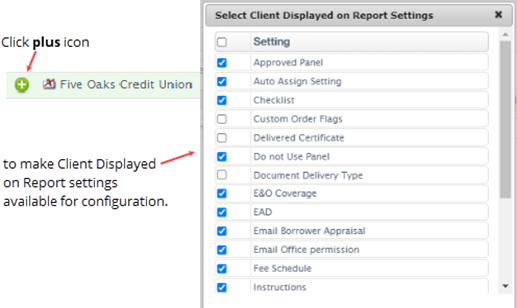
To choose the settings to be inherited from a Client Displayed on Report, an admin user will click the Plus icon associated with the lender name. In the Select Client Displayed on Report Settings dialog box, the user will select check boxes for settings to be inherited from the Client Displayed on Report. The check boxes that are deselected or that remain clear will represent settings to be applied using the client user or client company configuration.
Remember, at this point the client companies being set up as a Client Displayed on Report are simply going to be potential selections that an ordering client company can choose from when ordering a valuation product. To help admin users understand how to choose settings in this box, they should ask themselves the following question pertaining to situations when a client company would be placing an order in which they’ll choose a Client Displayed on Report.
Will the client company placing the order want Appraisal Scope to use certain settings associated with the Client Displayed on Report company when processing this order? If the answer is yes, then the admin user should select the check boxes associated with those settings in the Select Client Displayed on Report Settings dialog box. If the answer is no, then the admin user should leave all check boxes empty in this dialog box.
Note: Admin users should be aware when configuring the Client on Report page for client company profiles that some check boxes in the Select Client Displayed on Report Settings dialog box are pre-selected. As a result, the admin user should make sure that these pre-selected settings don’t conflict with the configuration that they want to achieve.
To sum up, any check boxes left empty will essentially mean that Appraisal Scope has been instructed to use the ordering client company profile settings in those instances. Any check boxes filled in and displaying a checkmark will mean that Appraisal Scope has been instructed to use the Client on Report’s client company profile settings in those instances. Not all check boxes need be empty, and not all need be selected.
Note: In instances where the profile settings associated with the ordering client user’s profile, or the branch profile settings associated with that client user’s branch, take precedent over the client company profile settings of the ordering client user’s client company, Appraisal Scope will use the client user or branch profile settings when a relevant check box is left empty in the Select Client Displayed on Report Settings dialog box.
Managing Client Displayed on Report settings:
The check boxes in the Select Client Displayed on Report Settings dialog box correspond to settings configurable for each client company profile. The following information describes where each setting in the dialog box also appears in the client company profile, and it details exactly what each setting will mean to Appraisal Scope functionality if chosen in the dialog box.
Approved Panel. The Approved Panel check box references the Appraiser Approved Lists, located under the Vendor Panels tab of the client company profile. When the check box is selected, Appraisal Scope will use the approved vendor panels configured and assigned under the Client Displayed on Report’s client company profile. If the check box is empty, Appraisal Scope will use the approved vendor panels configured and assigned under the ordering client’s client company profile.
Auto Assign Setting. The Auto Assign Setting check box references the settings found under the Auto Assign tab of the client company profile. When the check box is selected, Appraisal Scope will use the auto-assignment settings associated with the Client Displayed on Report’s client company profile. If the check box is empty, the system will use the auto-assignment settings configured under the ordering client’s client company profile.
Feature | Description |
|---|---|
Checklist | The Checklist check box references the client checklists and their assignment settings, located under the Add Checklist tab of the client company profile. When the check box is selected, Appraisal Scope will use the assigned checklists associated with the Client Displayed on Report’s client company profile. If the check box is empty, the system will use the assigned checklists configured under the ordering client’s client company profile. |
Custom Order Flags | The Custom Order Flags check box references the Automatically apply one or more order flags to all new orders setting found under the Company Settings tab of the client company profile, Order Management section. When the check box is selected, Appraisal Scope will use the order flags settings associated with the Client Displayed on Report’s client company profile. If the check box is empty, the system will use the order flags settings configured under the ordering client’s client company profile. |
Delivered Certificate | The Delivered Certificate check box references the Automatically send client Delivered Certificate, Send Delivered Certificate when report is, and Generate Delivered Certificate for additional documents when report is settings, which allow admin users to enable automatic certificate delivery and dictate when the certificate will be sent and generated. These settings are found under the Company Settings tab of the client company profile, Borrower Delivery section. When the check box is selected, Appraisal Scope will use the certificate delivery settings associated with the Client Displayed on Report’s client company profile. If the check box is empty, the system will use the certificate delivery settings configured under the ordering client’s client company profile. |
Do not Use Panel | The Do not Use Panel check box references the Appraiser Do Not Use Lists, located under the Vendor Panels tab of the client company profile. When the check box is selected, Appraisal Scope will use the Do Not Use lists configured and assigned under the Client Displayed on Report’s client company profile. If the check box is empty, Appraisal Scope will use the Do Not Use lists configured and assigned under the ordering client’s client company profile. |
Document Delivery Type | The Document Delivery Type check box references the Send document to client as setting found under the Company Settings tab of the client company profile, Client – Order Completion section. When the check box is selected, Appraisal Scope will use the delivery setting associated with the Client Displayed on Report’s client company profile. If the check box is empty, the system will use the delivery setting configured under the ordering client’s client company profile. |
E&O Coverage | The E&O Coverage check box references the Minimum E&O Coverage Amount setting found under the Company Settings tab of the client company profile, Order Management section. When the check box is selected, Appraisal Scope will use the minimum coverage amount associated with the Client Displayed on Report’s client company profile. If the check box is empty, the system will use the minimum coverage amount associated with the ordering client’s client company profile. |
EAD | The EAD check box references the Automate EAD submission setting found under the Company Settings tab of the client company profile, Order Management section. When the check box is selected, Appraisal Scope will use the EAD settings associated with the Client Displayed on Report’s client company profile. If the check box is empty, the system will use the EAD settings associated with the ordering client’s client company profile. |
Email Borrower Appraisal | The Email Borrower Appraisal check box references the Email borrower appraisal by default setting found under the Company Settings tab of the client company profile, Client - Order Completion section. When the check box is selected, Appraisal Scope will use the email settings associated with the Client Displayed on Report’s client company profile. If the check box is empty, the system will use the email settings associated with the ordering client’s client company profile. |
Email Office permission | The Email Office permission check box references the Lock Email Office (Send Message) setting found under the Company Settings tab of the client company profile, client users section. When the check box is selected, Appraisal Scope will use the Email Office settings associated with the Client Displayed on Report’s client company profile. If the check box is empty, the system will use the Email Office settings associated with the ordering client’s client company profile. |
Fee Schedule | The Fee Schedule check box references the Jobtype Lists and their assignment settings, located under the Fee Settings tab of the client company profile. When the check box is selected, Appraisal Scope will use the Jobtype Lists and their assignment settings associated with the Client Displayed on Report’s client company profile. If the check box is empty, the system will use the Jobtype Lists and their assignment settings configured under the ordering client’s client company profile. |
Instructions | The Instructions check box references the instructions and assignment settings, located under the Instructions tab of the client company profile. When the check box is selected, Appraisal Scope will use the instructions and assignment settings associated with the Client Displayed on Report’s client company profile. If the check box is empty, the system will use the instructions and assignment settings configured under the ordering client’s client company profile. |
Job Type Fee Margin | The Job Type Fee Margin check box references the Set fee margin for Job Type setting found under the Company Settings tab of the client company profile, Order Management section. When the check box is selected, Appraisal Scope will use the fee margin associated with the Client Displayed on Report’s client company profile. If the check box is empty, the system will use the fee margin amount associated with the ordering client’s client company profile. |
Mail Hard Copy to Borrower / Co-borrower | The Mail Hard Copy to Borrower / Co-borrower check box references the Mail Hard Copy to Borrower / Co-borrower setting found under the Company Settings tab of the client company profile, New Order Form section. When the check box is selected, Appraisal Scope will use the setting associated with the Client Displayed on Report’s client company profile. If the check box is empty, the system will use the setting associated with the ordering client’s client company profile. |
Merge Documents | The Merge Documents check box references three consecutive settings beginning with Merge Documents. These settings can be found under the Company Settings tab of the client company profile, Client - Order Completion section. When the check box is selected, Appraisal Scope will use the “if and when to merge” settings associated with the Client Displayed on Report’s client company profile. If the check box is empty, the system will use the “if and when to merge” settings associated with the ordering client’s client company profile. |
Require ENV | The Require ENV check box references the Require ENV setting found under the Company Settings tab of the client company profile, Appraisers section. When the check box is selected, Appraisal Scope will use the setting associated with the Client Displayed on Report’s client company profile. If the check box is empty, the system will use the setting associated with the ordering client’s client company profile. |
Payment Options | The Payment Options check box references the series of settings beginning with Payment Options. These settings can be found under the Company Settings tab of the client company profile, Payment section. When the check box is selected, Appraisal Scope will use the payment settings associated with the Client Displayed on Report’s client company profile. If the check box is empty, the system will use the payment settings associated with the ordering client’s client company profile. |
Populate License and E&O Documents | The Populate License and E&O Documents check box references the Automatically populate appraiser license and E&O into additional documents when the appraisal report is uploaded setting found under the Company Settings tab of the client company profile, Order Documents section. When the check box is selected, Appraisal Scope will use the setting associated with the Client Displayed on Report’s client company profile. If the check box is empty, the system will use the setting associated with the ordering client’s client company profile. |
UCDP | The UCDP check box references the Automate UCDP submission setting found under the Company Settings tab of the client company profile, Order Management section. When the check box is selected, Appraisal Scope will use the UCDP setting associated with the Client Displayed on Report’s client company profile. If the check box is empty, the system will use the UCDP setting associated with the ordering client’s client company profile. |
Settings pertaining to third-party integrations | The following check boxes are related to third-party integrations. As such, AMC staff users may not see them in the Select Client Displayed on Report Settings dialog box affiliated with their platform-version. |
The Use FNC Setting, Use In House Setting, Use Mercury Setting, Use RealEC Setting, and UWM Sync check boxes reference these third-party integrations. When an admin user selects the check box for any of these options, Appraisal Scope will use the corresponding setting associated with the Client Displayed on Report’s client company profile. If the check box is empty, the system will defer to the client’s client company profile.
Vendor Panels Tab
The Vendor Panels tab offers admin users the ability to assign a list of approved appraisers to a client company profile. Assigning a panel in this way ensures that orders placed by users within this client company are assigned to approved appraisers.
This tab also offers an option to assign a Do Not Use list of appraisers to a client company record. When a Do Not Use list is assigned, the platform-version will exclude the appraisers on the list as valid order recipients for orders placed on behalf of this client company.
Admin users can assign an Approved and/or Do Not Use list of appraisers from the Vendor Panels tab by clicking the relevant drop-down box and clicking the name of the appropriate list from the choices that appear. Next, the user will click Assign List.
All Approved and/or Do Not Use lists assigned to a client company profile at any given time will display under the List Name header associated with the Add Appraiser Approved Lists and/or Assign Appraiser Do Not Use Lists sections of the page. Details on how Approved and Do Not Use lists are created can be viewed in the Panels tab section.
Auto Assign Tab
The Auto Assign tab gives admin users options to set configurations impacting orders placed on behalf of the client company based on factors dictated by the client company (Auto Assign configurations can be made at the global, client user, and branch levels as well [see the section on functional levels for information regarding the Appraisal Scope levels]). Criteria set here will determine how Appraisal Scope chooses appraisers it assigns to valuation products ordered by client users of the client company.
Options can be chosen as follows.
Automatically Assign Orders:
To enable the criteria entered from this tab to be used to determine what appraisers are automatically assigned orders placed by this client company, select the check box. When the check box is left clear, orders placed by client users within the company can only be auto assigned using rules established at the branch or client user levels; otherwise, orders for this client company will have to be assigned manually.
Auto assign all orders to appraisers using the following criteria:
When auto assign is enabled, an admin user has the option to leave this check box alone — which will enable the platform-version to take the criteria settings chosen in the Search Criteria box into account when assigning appraisals ordered by this client company — or to select Auto assign all orders to AMCs. Leaving the check box alone brings two more options for configuration into play.
Disable for unpaid orders:
When this check box is selected, the platform will not auto assign orders placed under this client company if payment has not been received.
Note: Invoiced orders will still trigger auto assign if this check box is selected.
Disable for Rush orders: When this check box is selected, the platform will not auto assign orders in a Rush status placed under this client company.
Suggest appraisers for assignment when manually assigning an order: When this check box is selected, the platform-version will use auto-assign criteria to try and suggest possible matches when an order placed under this client company is assigned manually, including instances when new orders are manually assigned and instances when orders fail to automatically assign and have to be manually assigned.
Notify the client when an appraiser is assigned. To set up an Appraisal Scope platform-version to automatically notify the client company when an appraiser is assigned, select the check box here.
Search Criteria group
Admin users can set conditions in the Search Criteria section that will determine which appraisers are considered when auto assign is carried out for orders placed by a client company. Note that admin users must click Save at the bottom of the Selection Criteria section of the page to apply the auto assign criteria selections they make here.
Setting | Description |
|---|---|
Max Distance | To enable an Appraisal Scope platform-version to apply a maximum distance rule when searching for an appraiser to assign to an order from this client company, select the check box and enter the maximum distance in the miles box. When this setting is enabled, appraisers whose address is further away in miles than the maximum distance will not be considered for assignment to orders placed by this client company. To set maximum distances that will apply by state, county, or zipcode, click Configure by state/county/ZIP, choose the relevant states from the Set by State dialog box and type the desired maximum distance in the Distance, miles box. To set maximum distances to apply by county or zipcode, click Set by County or Set by ZIP code from the line in the Action column associated with the state(s) containing the county or zipcode, type the maximum distance to assign in all appropriate text boxes, and click Save. |
Minimum Quality Rating | To enable an Appraisal Scope platform-version to use an appraiser’s quality rating as a criterion for considering an appraiser for assignment to a client company’s orders, select the check box, click the drop-down list, and choose a number 1 through 5. When this setting is enabled, appraisers with quality ratings less than the number showing in the drop-down list will be excluded from being assigned orders.
|
Minimum Service Rating | To enable an Appraisal Scope platform-version to use an appraiser’s service rating as a criterion for considering an appraiser for assignment to a client company’s orders, select the check box, click the drop-down list, and choose a number 1 through 5. When this setting is enabled, appraisers with service ratings less than the number showing in the drop-down list will be excluded from being assigned orders. |
Minimum Turn-Time Rating | To enable an Appraisal Scope platform-version to use an appraiser’s turn-time rating as a criterion for considering an appraiser for assignment to a client company’s orders, select the check box, click the drop-down list, and choose a number 1 through 5. When this setting is enabled, appraisers with turn-time ratings less than the number showing in the drop-down list will be excluded from being assigned orders.
|
Maximum pending orders | To enable an Appraisal Scope platform-version to use the number of pending orders (orders in any status listed in parentheses above) attributed to an appraiser as a criterion for potential assignment to a client company’s orders, select the check box and enter the maximum number of orders to consider into the text box. When this setting is enabled, appraisers whose pending orders exceed the number showing in the text box will be excluded from being assigned orders. |
Exclude Appraiser if open orders equals or exceeds max orders allowed | To enable an Appraisal Scope platform-version to use the number of open orders attributed to an appraiser as a criterion for potential assignment to a client company’s orders, select the check box. When this setting is enabled, appraisers whose open orders exceed the number showing in the Maximum pending orders text box (see above) will be excluded from being assigned orders. |
Approved list | When the check box for this setting is selected, an Appraisal Scope platform-version will use lists of approved appraisers that the client company has provided to assign an appraiser (see the entry in the Panels tab section for more details about adding Approved lists). This setting eliminates any appraiser not on the approved list from being assigned orders. |
Coverage | When the check box for this setting is selected, Appraisal Scope will eliminate appraisers for assignment who are not licensed for the geographical area indicated on a given order. |
FHA-approved | To enable an Appraisal Scope platform-version to exclude appraisers who are not FHA approved from order assignment, select the check box for this setting. To choose whether to have the platform-version search for FHA-approved appraisers to assign for all appraisal forms or only for FHA appraisal forms, click Options, make a selection from the FHA Approved – Options box, and click Save. |
Certified General | To enable an Appraisal Scope platform-version to exclude appraisers who are not Certified General from assignment consideration, select the check box for this setting. The number in the drop-down list will reflect the priority an AMC wants to place on this certification in relation to the Certified Residential or Licensed Residential certifications. Click the drop-down and select 1, 2, or 3 to choose whether Appraisal Scope will look for appraisers who are Certified General first, second, or third in relation to appraisers who are Certified Residential or Licensed Residential. |
Certified Residential | To enable an Appraisal Scope platform-version to exclude appraisers who are not Certified Residential from assignment consideration, select the check box for this setting. Click the drop-down and select 1, 2, or 3 to choose whether Appraisal Scope will look for appraisers who are Certified Residential first, second, or third in relation to appraisers who are Certified General or Licensed Residential. |
Licensed Residential | To enable an Appraisal Scope platform-version to exclude appraisers who are not Licensed Residential from assignment consideration, select the check box for this setting. Click the drop-down and select 1, 2, or 3 to choose whether Appraisal Scope will look for appraisers who are Licensed Residential first, second, or third in relation to appraisers who are Certified General or Certified Residential.
|
Jobtype provided by appraiser | To enable an Appraisal Scope platform-version to exclude from assignment consideration appraisers who do not indicate in their profile that they offer the valuation product listed on the order, select the check box for this setting. |
Appraisal forms | To enable Appraisal Scope to only perform auto assign for orders involving specific appraisal forms, select the check box for this setting. Choose the forms to which auto assign will be limited by clicking Select appraisal forms, clearing check boxes for forms that won’t trigger auto assign and selecting check boxes for forms that will, and clicking Submit. |
Profit margin percentage | Profit margin percentage. To enable a platform-version to take into consideration for auto assign how much profit would be left after subtracting an appraisal fee charged by an appraiser from a total client fee, select the check box for this setting. The profit is represented by the percentage of total client fee remaining after an appraiser’s quoted fee is subtracted.
|
ENV capable | When the check box for this setting is selected, the platform will exclude from assignment consideration appraisers who do not indicate in their profile that they are ENV capable. |
Co-op capable | This setting is useful for assigning orders to appraisers who can perform cooperative unit valuations. When the Co-op capable check box is selected, the platform will exclude from assignment consideration appraisers who do not indicate in their profile that they are Co-op capable. |
Prevent order from auto-assigning if it is a duplicate order | When the check box for this setting is selected, the platform will not execute auto assign on duplicate orders. A duplicate order is defined by the property address being identical to the property address on any other order. |
Background Check Complete | When the check box for this setting is selected, the platform will exclude from assignment consideration appraisers whose Background Check Complete status is NO. |
Vendor Status | To enable Appraisal Scope to screen out appraisers for auto assignment by vendor status, select the check box for this setting. To set the vendor statuses the platform will use to screen out appraisers, click Select status, select or clear check boxes associated with the relevant statuses in the Select Vendor Status dialog box, and click Submit.
|
Minimum CU R&W% | When the check box for this setting is selected, the platform will exclude from assignment consideration appraisers whose CU R&W% scores are equal to or less than a minimum score. To set the minimum to be used, type a CU R&W% score into the text box associated with this setting. |
Maximum Late Orders | When the check box for this setting is selected, the platform will exclude from assignment consideration appraisers with a number of late orders higher than an established maximum. To set the maximum to be used, type the value in the text box associated with this setting. The Maximum Late Orders option considers late-order data accumulated across an AMC’s platform-version to derive an appraiser’s late order number. |
When the check box for this setting is selected, the platform will not initiate auto assign if the intended use of the order does not match one of the preselected intended uses. To select intended uses to screen by, click Select Intended Uses, select the check boxes in the Select Intended Use dialog box matching the intended uses that will allow auto assign to run, and click Submit. |
Assignment Logic group
Admin users can set conditions in the Assignment Logic section that will determine whether auto assign will run under certain conditions, which appraiser will be chosen from among the results returned by a platform-version, or how reassignment is handled if the first appraiser chosen for assignment doesn’t accept. Note that admin users must click Save at the bottom of the Assignment Logic group section of the page to apply the auto assign criteria selections they make here.
Setting | Description |
|---|---|
Prioritize approved lists | To set the platform-version to prioritize the approved lists of appraisers affiliated with a client company by admin user–set priority values, select the check box associated with this setting. The available lists can be prioritized by clicking Manage Approved List, numbering the lists that appear in the Manage Approve List Priority For Auto Assign dialog box by their order of priority for consideration, and clicking Save. |
Prevent order from auto-assign on additional comment | When the check box for this setting is selected, orders that have text in the Additional Comments field of the order form will not be auto assigned. |
Reassign to next appraiser if unaccepted after | When the check box for this setting is selected, the platform-version will automatically reassign an order to another appraiser if the assignment is not accepted within a certain amount of time. To set the time limit, type the number of hours in the text box associated with this setting.
|
Assign to the same appraiser when adding forms | When the check box for this setting is selected, if appraisal forms are added to an order that has been assigned to an appraiser, the same appraiser will be assigned the additional forms. To select the forms that would qualify to be assigned to the same appraiser if added to an already assigned order, click Select appraisal forms, clear or select check boxes associated with all relevant forms, and click Submit. |
Exclude appraisers on vacation | When the check box for this setting is selected, appraisers who are marked as being on vacation will be excluded from order assignment consideration. |
Automatically reassign immediately on decline | To have Appraisal Scope automatically reassign an order if it’s declined by an appraiser, select the check box associated with this setting. If the check box is selected and Stop is also selected, then the platform will stop trying to auto assign when it exhausts all available appraisers in its auto assign search results. When Restart is selected, the platform will re-assign the order to the first appraiser who initially declined. |
Add Checklist Tab
The Add Checklist tab gives admin users the ability to create new checklists, duplicate and edit checklists currently in their platform-version, and assign checklists to client company profiles. Checklists assigned to a client company profile will be presented when any appraiser who accepts work ordered by that client company uploads the appraisal report.
Add new checklist and assign to client company profile:
From the Add Checklist page, click Add New Checklist.
Type the new checklist name into the Checklist text box and click Save.
Next, click the Select Checklists box and select the checklist name that you’ve just added.
Click Add Question to Checklist, type the first question to appear on the checklist into the Question text box, and click Save.
Repeat this step for each question you wish to add.
To assign the checklist to the client company profile, click Assign Selected Checklist (see Note following instructions).
This checklist will now appear to an appraiser who accepts an assignment for work ordered on behalf of this client company
Note: Any new checklist saved to your Appraisal Scope platform-version in this way will be available to clone, modify, or assign to any client company profile by choosing it from the Select Checklists box.
Duplicating and modifying an existing checklist:
From the Add Checklist page, click the Select Checklist box, choose the checklist you’d like to duplicate, and then click Clone Checklist.
In the Checklist text box, type the name to be given to the new checklist and click Save.
To add a question to the list, click Add Question to Checklist, type the question into the Question text box, and click Save. Repeat this step for each question you wish to add.
To edit an existing question, click the Edit icon associated with that question, modify the question in the Question Title text box, and click Save.
To delete an existing question, click the Delete icon associated with that question.
To associate the checklist with a client company profile, click Assign Selected Checklist.
This checklist will now appear to an appraiser who accepts an assignment for work ordered on behalf of this client company.
Deleting a checklist:
To delete a checklist from the Add Checklist page, an admin user will click the Select Checklist box, choose the checklist to delete, and click Delete Checklist.
Chaning the name of a checklist:
To change the name of a checklist from the Add Checklist page, an admin user will click the Select Checklist drop-down box, choose the checklist name to change, and click Edit Checklist. After the user changes the name that appears in the Edit Checklist text box, they will click Save and this checklist will now appear in the Select Checklist box under the new name.
Add Users Tab
The Add Users tab allows admin users to add client users to a client company profile and set permissions that will be associated with this client user in the platform. For instructions on adding a new user, see the Adding client user to an existing client company profile section of the User Guide.
All client users associated with a client company profile will be listed at the bottom of the Add Users page, beneath the Branch Name header of the branch they’re affiliated with. Clicking the name of a client user from the list below the Branch Name header will produce that user’s client user profile.
This is also where admin users can give client admin user privileges to client users. To give client administrator privileges to a client user from the Add Users page, select the Client Administrator check box.
Setting user permissions:
An AMC admin user or client admin user has options for setting permissions from the Add Users tab. These permissions give a client user visibility into orders placed by other client or broker users within the same client company. Further permissions are available here that dictate whether status notification emails will be received by the client user to whom permission has been granted.
An AMC admin user or client admin user can set a client user up with permissions. The following procedural information covers different types of permission that a client user can be granted, and the methods for setting up these permissions.
Grant client users permission to see orders placed by other client users in their client company:
From the client company profile, click Add Users.
Go to the Client User list(s) at the bottom of the page under the Branch heading(s), find the client user you’ll be granting permission to, and click Set Permission in the Permission field of the list entry. When the Add Permission box opens, make sure that internal users is selected.
The Users section in the Add Permission box displays a list of all client users under the client company (excluding the client user who’s being granted the permission). Select the check boxes associated with the client users whose orders you want to provide visibility into.
Note that the names of the selected client users will now appear in the User Permission column, signaling that orders placed by these client users will be visible to the client user to whom you’re granting permission.
Grant client users permission to see orders placed by any client users under a branch of the shared client company:
Repeat Steps 1 and 2 of the previous procedures. The Groups section in the Add Permission box lists all branches under the client company. Select the check boxes associated with the branches whose orders you want to provide visibility into.
You can select all branches by clicking Select All in the Groups header.
To have Appraisal Scope automatically add any newly branch-affiliated client users to the permission list as they’re added in a platform-version, select the Auto Add New Group check box in the Groups header.
Grant client users permission to see orders placed by any broker users affiliated with a client company:
After accessing the Add Permission box by following Steps 1 and 2 of the first procedure set under Setting user permissions, make sure that you select broker users at the top of the box.
The Broker Users section in the Add Permission box displays a list of all broker users under the client company. Select the check boxes associated with the broker users whose orders you want to provide visibility into.
The Brokers section of the box displays a list of client companies that a client company has a Client on Report relationship with. Select the check boxes associated with any client companies whose orders you want to provide visibility into.
Grant client users email permission to receive status notifications for visible orders:
After selecting the order-visibility permissions that you want to grant, select mail permission at the top of the Add Permission box.
In the Internal Users section (or Broker Users section; the setup in either case will be the same), click the Please select box and choose the user whose orders you want to trigger email notifications. If you want the email permissions to apply to all of the users you’ve selected previously, click Apply to All instead.
Select the check boxes for the order statuses that you want to trigger email notifications.
If you want to configure email settings that will automatically apply to orders placed by new users who will be subsumed into the client company in the future, click Set Automated Mail Permission. Set the permissions that you want to automatically apply by selecting the check boxes for the relevant order statuses.
When you’re finished with all configurations, click Close.
Organizing client users by branch
Client users can be grouped together into branches under a client company profile. Branches don’t necessarily need to refer to physical locations of a client company, so dividing a client company profile into branches allows the client company to establish its own criteria for what constitutes a branch. Adding branches and organizing client users under them gives client admin users and AMC admin users more choices when setting permissions for the client company, allowing more ways to divide permissions up among client-company-affiliated users.
To add new branches to a client company profile from the Add Users tab, an admin user will click the Add Branch button from the center of the menu bar at the bottom of the Add Users section of the page. The admin user can enter as much information as desired into the text boxes that come up, but the only required information is Branch Name.
Accessing and disabling branch and client profiles from the client company profile
Once a branch is established, an admin user can view branch information by clicking Branch Settings, or disable the branch by clicking Disable Branch associated from the heading associated with a branch entry. When a branch is disabled, the branch entry will disappear, and client users within that branch will no longer have access to the platform-version. To reenable the branch and the client user profiles under it, the admin user will click the Show Disabled toggle switch, and the disabled branch entry will reappear. The user will then click Enable Branch in the branch entry heading.
Individual client users can also be disabled without the whole parent branch needing to be disabled. An admin user will click Disable from the Action field associated with the client user entry. The user can then be reenabled by clicking Enable. Once a client user has been disabled, they will not appear under the branch entry until they’ve been reenabled or until the Show Disabled toggle switch has been activated
Note: When a previously disabled branch profile has been reenabled, the client user profiles organized under it will remain disabled until they are individually reenabled.
Company Settings Tab
The Company Settings tab allows an AMC and its admin users to control how orders placed on behalf of any particular client company will behave in that AMC’s platform-version. Settings established from this tab will apply to the client users affiliated with that client company.
Note: Settings established from this tab will apply to all client users affiliated with a client company, except for those affiliated with a client user profile that prevails at the client user profile level.
The Company Settings options are grouped in the following sections. Each setting is documented under the heading of the Appraisal Scope functionality that it impacts.
New Order Group:
The New Order group controls the type and method of new order that a given company can place from their side of an AMC’s Appraisal Scope platform. Options are chosen as follows.
Order Type | Description |
|---|---|
Appraisal Order | To allow a company to order an appraisal by clicking New Appraisal, click Enabled in the drop-down list. |
AVM Order | To allow a company to order an AVM by clicking New Appraisal, click Enabled in the drop-down list. |
RealCondition Report Order | To allow a company to order a RealCondition Report by clicking the Order RealCondition Report option on an AVM order, click Enabled in the drop-down list. |
Client Users Group:
The Client Users group controls restrictions that an AMC can choose to place on certain functionality a client user has access to. Restrictions are set as follows.
Feature | Description |
|---|---|
Lock E-mail Office (Send Message) | To restrict some or all of a company’s client users from sending messages in E-mail Office, select one or more of the Processor, Manager, or Loan Officer check boxes in the Select Client User Types list and click Save. |
Client access to award bids | To allow a queue showing bids to be seen on a client user’s dashboard, click Enabled in the drop-down list. When Enabled, the Mask Appraiser’s Name & Contact Information check box appears. Select this check box to make sure that no identifying information related to appraisers submitting bids can be seen. |
Restrict users to branch | To restrict the option of order-placing client users to be able to select and place orders on behalf of other client users within a different branch, click the drop-down list and choose Enabled–All users or Enabled–Loan processors and officers only.
|
Enable domain whitelist for e-mail responses to orders. | This setting allows an admin user to enable the platform to process email messages that come from domains that are whitelisted, regardless of whether the responding email address was configured for notification on the order or not. When this setting is disabled, the platform will only process responses from the email addresses set up for notification on the order.
|
New Order Form Group:
The New Order Form group controls what options show up on an order form that a given client user sees. Choices on these options are made as follows.
Feature | Description |
|---|---|
Display Rush Order option | To allow a client user to specify a rush order by allowing a rush order option to appear on the order form, select the check box to the right. |
Allow override of automatic borrower delivery | To allow a client user the option to override automatic borrower delivery, select the check box to the right. |
Loan Number | To choose whether the loan number field shows up on the order form, click Show or Hide in the drop-down list. If you click Show, choose whether a loan number will be required on a new appraisal form by clicking Disabled or Enabled from the drop-down list beneath the Show drop-down list. And if you want to limit the number of characters allowed in the loan number field, type the number of characters in the Max Characters box. |
Reference Number | To choose whether the reference number field shows up on the order form, click Show or Hide in the drop-down list. If Show is clicked and you want to set restrictions on the number of characters allowed in the reference number field, type the number of characters in the Max Characters box. |
Contract Document | To choose whether to make a contract document a requirement or an option for placing purchase orders, or whether to leave this item out of the order form entirely, click Required, Optional, or Disabled from the drop-down list. |
Mail Hard Copy to Borrower/Co-borrower | To choose whether to make it optional or required that the client user mail a hard copy of the report to the borrower/co-borrower, or whether to leave this item out of the order form entirely, click Disabled, Optional, or Required from the drop-down list. |
Display FDIC fields | To choose whether FDIC fields are displayed on the order form, click Disabled or Enabled from the drop-down list. |
Hide Additional Comments/Instructions | To hide the additional comments/instructions field of the order form so that client users can’t give any special direction to an appraiser, click Enabled from the drop-down list. |
Hide Fee | To hide the fee section of the order form so that client users can’t set fees in the order form, click Enabled from the drop-down list. |
Show Manager users in the Loan Officer dropdown | To allow client users that are designated Managers to appear in the Loan Officer drop-down list of the order form, click Enabled from the drop-down list. |
Include Time with the Due Date | To give client users the option to set a “time due” along with the due date on an order form, click Enabled from the drop-down list. |
Require Borrower’s Email Address | To choose whether a borrower’s email address will be required or optional when a client user places a new order, click Optional or Required from the drop-down list. |
Override Estimated Closing Date requirement | To eliminate the estimated closing date requirement for a particular company, click Enabled from the drop-down list. |
Notified User Types Displayed On Order Form | To allow a client user placing an order to choose other client users who will receive notifications for the order placed, click the drop-down list and choose the client user type—Processor, Manager, Loan Officer, or all or some combination of these types—that you’d like to limit an ordering user’s selection options to, then click Save. |
Payment Group:
The Payment group controls the payment methods available to a client user when they submit an order. Controls can be set up as follows.
Payment Form. To choose whether to direct client users to a payment form when they submit an order, click Yes or No from the drop-down list. If you click Yes, proceed to the next set of options. If you click No, proceed directly to the Bill Me(Bank/Borrower) Options description.
Payment Options.
Payment Option | Description |
|---|---|
Credit Card | To make credit card payment available to client users when they place an order, make sure your Authorize.net gateway has been configured and leave the Credit Card check box selected. |
Bank Account | To allow client users to pay directly from a bank account when they place an order, select the Bank Account check box. |
Send Payment Request to Your Customer | To allow a client user to send a request for payment to their customer when they place an order, select the Send Payment Request To Your Customer check box. And if this check box is selected, you have the option to send payment notification to the client user by selecting the Send completed payment notification to client check box. |
Bill Me | To allow a client user to be billed when they place an order, select the Bill Me check box. |
Split Credit Card Payments | To allow for payments to be split between credit cards when a client user places an order, make sure your Authorize.net gateway has been configured and select the Split Credit Card Payments check box. |
Invoice Partial Payment | To allow for partial payment to be made when a client user places an order and for the difference to be invoiced, choose the Invoice Partial Payment check box. |
Bill Me (Bank/Borrower) Options | If you select the Bill Me check box (see Payment Options above) and you want to allow the client’s billing options to show then a client user places an order, click Enabled from the drop-down list. |
Borrower Payment Options | If you allow for the client user to pass the payment request to the customer, you can choose whether options for borrower payment are strictly Authorization or Authorization and Capture by selecting one of these two option buttons. |
Integrations Group:
Appraisal Scope offers to AMCs integrations with commonly used data services. The Integrations group of controls on the Company Settings gives AMCs the ability to turn these integrations on and off by choosing Disabled or Enabled from the drop-down lists (see Note).
Note: A CoreLogic representative must configure integrations before they can be made available as settings from the Company Settings tab. Please contact Appraisal Scope customer support to inquire regarding integrations.
Appraisers Group:
The Appraisers group gives AMCs options to filter appraisers by certain criteria when assigning orders or to require information from appraisers when they upload a product. Choices among these options can be made as follows.
Require appraised value. To require that an appraiser enters an appraised value before an appraisal can be uploaded to the platform, select the check box.
Require explanation from appraiser if inspection date or estimated completion date is past appraiser due date. To make sure that an appraiser gives an explanation why an inspection date or estimated completion date they enter is past an established due date, click Enabled from the drop-down list.
License Type. To set up the platform to check appraiser license types against those designated in the Select License Types filter when an order is assigned, click Enabled from the drop-down list.
Years of Experience. To allow an appraiser or admin user to input the number of years the appraiser has in the profession, click Enabled from the drop-down list.
Order Management Group
The Order Management group controls the way the platform handles orders when they’re placed, whether certain information is communicated with the order details and to whom it’s communicated. Options can be chosen as follows.
Setting | Description |
|---|---|
Set commission to zero if P&L is less than or equal to | This control gives you the option to tie sales commissions to a P&L limit. When a P&L value falls below the limit that’s set, the sales commission will go to zero. To set this limit, click Percentage or Flat Fee from the drop-down list and enter the number for this percentage or flat fee in the box to the right. If you don’t wish to set a limit, just make sure the value entered into the box is 0. |
Put orders on hold upfront | To automatically put orders in an On Hold status and move them to the On Hold queue in the Dashboard when the order is placed, click Yes in the drop-down list. You will need to select the appraisal forms associated with orders that, when ordered, will be automatically moved to the On Hold queue. Click Select appraisal forms to the right of the drop-down box. Select the check boxes associated with the appraisal forms that will go to the On Hold queue when ordered and click Submit. |
Permission to initiate order processing | (visible only if Put orders on hold upfront is set to Yes). To choose which client user type(s) can initiate processing of an order that is automatically moved to the On Hold queue in accordance with the Put orders on hold upfront setting, select the check box associated with the appropriate client user type(s). |
Minimum E&O Coverage Amount | To put a minimum limit on the E&O coverage that an appraiser must carry to be assigned an order, enter the minimum amount in the box to the right. |
Fee Deduction Setting | To allow fee deductions to be made based on certain fee payment methods, click Enabled in the drop-down list. |
Use alternative assignment & Invoice addresses | To give a client user the option to decide the address used for the invoice and/or the assignment, click Enabled from the drop-down list. |
Set fee margin for Job Type | This control allows you to set restrictions on which appraisers can be assigned an order based on their fees. Fee margins can be set here that establish the rules that Appraisal Scope will follow. By these rules, an appraiser will only be assigned an order if their fee meets or exceeds the set margin. These margins can be set as flat fees or percentages.
Setting fee margins by job type
|
Email notifications to cc all notified users on an order. | To allow the platform to cc email addresses entered into the Notify other user (Email) field of the order form, click Enabled from the drop-down list. |
Disable Order Assignment Until Balance Due is $0.00. | To keep an order from being assigned until the balance due on the order is zero, click Enabled from the drop-down list.
|
FHA Approved Appraisers Only | To restrict which appraisers can be assigned by Appraisal Scope to those who are FHA approved, click Enabled in the drop-down list. |
Automate UCDP submission | To have the platform automatically submit an appraisal to the Uniform Collateral Data Portal (UCDP) when it’s uploaded, click Enabled in the drop-down list. |
Custom Billing Address | To allow an address that’s different from the one a client company has on its profile to be used for billing, click Enabled from the drop-down list. |
Automatically apply one or more order flags to all new orders | To allow all new orders to be flagged in accordance with previously configured flag configurations, click Enabled from the drop-down list. |
Place Orders On Hold When Purchase/Sales Price varies X% from Appraised Value | To allow an order to be automatically put on hold when the purchase or sale price differs from the appraised value by at least a certain percentage, click Enabled from the drop-down list.
|
Automate EAD submission | To automate the process for submission of Electronic Appraisal Deliveries (EADs). Click Enabled from the drop-down list. |
Log/Display Vendor to Client when Assigned | To allow a client to see who the appraiser assigned to an order is after the order status has changed to Assigned. Click Enabled from the drop-down list. |
Appraiser Search Snapshot | To allow the Appraiser Search Snapshot document to be added to the Additional Documents section. Click Enabled from the drop-down list. |
Add Appraisal Form | To hide the Add Appraisal Form button that appears in the Order Details. Click disabled from the drop-down list.
|
Display CU R&W% score to Client | To make the Collateral Underwriter Representation and Warranty (CU R&W) score available to the client. Click Enabled from the drop-down list. |
Notify staff user if Appraised Value on report is less than Purchase price on order | To make sure that an assigned admin user is notified if an appraised value is less than the purchase price entered on an order. Click Enabled from the drop-down list. |
Show ‘Additional Comments’ field to assigned vendor | To allow any comments entered in the Additional Comments field to be shown to an assigned appraiser. Click Enabled from the drop-down list. |
Order Documents Group:
The Order Documents group offers options to control the types of document and types of information available to display on documents. These options can be controlled as follows.
Settings | Description |
|---|---|
Auto generate Documents | If you want template documents to generate automatically and be added to the Additional Documents field when an order is completed, select the check box to the right of this option. |
Automatically populate appraiser license and E&O | Into additional documents when the appraisal report is uploaded. To have Appraisal Scope automatically input appraiser license and E&O into the Additional Documents field when the appraiser uploads the report, click Enabled from the drop-down list. |
Show Ordered For Name on Invoice | If you want the name of the entity for which the product was ordered to show up on the invoice along with their company information, click Enabled from the drop-down list. |
Preferred date to display on invoice | To display the date an order is completed on the invoice, click Completed Date from the drop-down list. To display the date an order is placed on the invoice, click Order Date from the drop-down list. |
Separate appraiser fee disclosure into its own document | If you would prefer that the appraiser fee be disclosed through a separate Appraiser Fee Disclosure document rather than displaying on the invoice, click Enabled from the drop-down list.
|
Client – Order Completion Group:
The Client – Order Completion group offers settings that control whether the appraisal review process will be automated; if so, what parameters will be used to carry this process out; and in general, the timing and conditions of appraisal delivery to client companies and their borrowers. These settings can be controlled as follows.
Setting | Description / Configuration |
|---|---|
Auto-Complete Order | Set to Yes if orders for the client company should automatically complete. Selecting Yes displays additional configuration options. If set to No, proceed to Delay Borrower Delivery. |
Ready for Review (Displays when Auto-Complete Order = Yes) | Configuration options that determine how orders are handled when they reach the Ready for Review status. Ready for Review (displays if Auto-Complete Order set to Yes).
Revision Received (displays if Auto-Complete Order set to Yes).
Reviewed (displays if Auto-Complete Order set to Yes).
|
Delay Borrower Delivery | Enables a delay before the appraisal is delivered to the borrower. Selecting Yes displays the Delay Timer setting. |
Delay Timer | Defines the number of hours to delay delivery of the appraisal to the borrower. |
Merge Documents | Determines when document templates are merged with the appraisal report: At Time of Completion or At Time of Upload. Set merged document templates. To select which document templates to merge with the appraisal report, click Set merged document templates. The Merged Document Templates dialog box will open. Select the check boxes coinciding with the templates you want Appraisal Scope to merge with the report, then click Submit. Select which documents should be pre-selected on the order completion screen. This setting allows you to pre-select the document templates you wish to appear on the order completion screen when an order has been completed. The following instructions will take you through the process for selecting these documents.
|
Email Borrower Appraisal by Default | Automatically pre-selects the Email to Borrower option whenever an order is completed. |
Change File Name When Emailed | Renames the appraisal report file when delivered, using predefined naming formats or a custom file name. |
Send Document to Client As | Determines whether final documents are delivered to the client as a Link or an Attachment. |
Allow Client to Email Report and Additional Documents | Enables a Mail button on the order completion screen so the client can email appraisal reports and additional documents after delivery. |
Borrower Delivery Group:
The Borrower Delivery group provides extra choices as to what a client company can receive to verify report delivery, what borrowers might receive, and what client company details borrowers see on the platform pages they’re presented with. These choices can be made as follows.
Automatically send client Delivered Certificate. To set up automatic delivery to a client company of a certificate verifying that an appraisal report or document was emailed and downloaded by a borrower, click Enabled from the drop-down list.
Borrower Survey. To set up automatic delivery of a survey to a borrower, click Enabled from the drop-down list. The text of this survey can be created or modified by going to Settings > Emails > Borrower/Contact > Borrower Survey.
Replace Logo with Text on Borrower Delivery & Payment pages. To display your logo to the borrower on the pages that the borrower sees, click Enabled from the drop-down list.
Revisions Group:
The Revisions group provides options to limit who sees a revised report and to automate aspects of the report revision process. These options can be configured as follows.
Send revised reports to only the client user who requested the revision. To limit who receives the revised report to the client user that requested the revision, click Enabled from the drop-down list.
Automate the QC review for Report fields. To automate the QC review process for the report fields, click Enabled from the drop-down list.
Automatically check “Notify Client” when sending out a revision. To turn off the setting that auto-selects the Notify Client check box when a revision is sent out, or to just use the global level setting, click Disabled or Use Global Setting from the drop-down list.
Automatically check the “Checklist” button when sending out a revision. To turn off the setting that auto-selects the Checklist check box when sending out a revision, or to just use the global level setting, click Disabled or Use Global Setting from the drop-down list.
Instructions Tab
The Instructions tab allows admin users to create, edit, and assign instructions that will be presented to an appraiser when the appraiser accepts an assignment. Instructions can be uploaded as documents, and they can be typed into the Instructions page.
The Acceptance Message section of the page displays the message that a client user will receive when a job has been accepted by an appraiser. The message can be changed and reapplied by clicking Edit, typing the new message into the text box, and clicking Save.
The Documents section provides admin users the option to upload instruction documents that will display to an appraiser who has accepted an appraisal order. Instruction documents that have been uploaded will appear in the Documents list in this area of the page.
Documents can be renamed by clicking the Pencil and Notepad icon, entering the new name into the Title box when the Edit Document dialog box opens, and clicking Update. Documents can be deleted by clicking the Delete icon.
When an instruction document has been added and assigned to a client company profile, an appraiser who accepts an appraisal assignment originating from this client company will be provided a link. Clicking this link downloads the instruction document listed. An admin user will assign the instruction document to a client company profile by clicking Assign in the Instructions section of the page (see details in the Instructions section description below).
The Instructions section of the page provides admin users the option to create and assign detailed instructions to an appraiser who accepts an assignment. Instructions provided in this section can be assigned by state and/or by appraisal form, giving admin users the ability to be selective about how Appraisal Scope passes along different sets of instructions to appraisers who accept orders from a client company.
Instructions appearing in the Instructions list can be edited at any time by clicking the Pencil and Notepad icon, making applicable changes in the Edit Instruction dialog box, and clicking Save. Instructions can be deleted by clicking the Delete icon.
Admin users can also access a log that tracks actions taken with a set of instructions over time by clicking the Clipboard icon.
Adding an Instruction Document to a client company profile
Click Add Document.
When the Add Document dialog box opens, enter a title in the Document Title text box.
Click Browse and double-click the document file to upload, then click Add.
Adding Order-Specific instructions to a client company profile
Click Add Instruction to open the Add Instruction dialog box.
To add a previously created instruction template, click Add existing instruction template, select a template from the drop-down to add as instructions, and then click Close and Save.
To add a new set of instructions, enter a title for the instructions in the Title text box and create the instructions in the Template content editor, using the style and formatting options available in the text box header to customize the text.
To use tags that will allow order-specific details to automatically appear in the instructions, click Select a tag and choose the relevant tags from the drop-down list.
Click Save when the set of instructions is complete.
This set of instructions will now appear in the Instructions list and will be assignable to the client company profile.
Assigning Instructions to a client company profile
In the Action column entry associated with the set of instructions to be assigned, click Assign.
To assign an uploaded instruction document to be attached when instructions are provided to an appraiser, in the Mass Assign menu box select the check box under Client Level Documents that’s associated with the document to assign.
To set the platform-version to provide the instructions to appraisers when orders pertaining to specific states are accepted, select the check boxes associated with the relevant states.
To set the platform-version to provide the instructions to appraisers when orders for specific valuation products are accepted, select the check boxes associated with the relevant appraisal forms.
Click Save after all selections are made.
Note: For more details regarding how instructions can be created and assigned in an Appraisal Scope platform-version, see the Instructions section in the Settings chapter.
Fee Settings Tab
The Fee Settings tab allows admin users to assign fee schedules to a client company profile. The fee schedules assigned to the client company determine what the fee to be paid will be for any of the valuation products offered when a client user places an order on behalf of the client company.
Assigning a fee schedule
To assign a fee schedule to a client company, click the Users tab from the main page and verify that Client is selected from the Users tab menu.
Search for the client company profile that will be assigned the fee schedule using the search fields on the left side of the page (see the Client tab search functionality section for more details).
Select the applicable client company from the list of search results to open the client company profile.
Click Fee Settings from the menu bar at the top of the client company profile.
Click the Select Job List drop-down and select the fee schedule to be applied from the list, then click Assign Job List.
Additional Docs Tab
The Additional Docs tab allows admin users to upload and store on their platform-version any documents they’d like to associate with a client company profile. Documents can be uploaded by clicking Select File, providing a document type in the Document Type box, and clicking Submit. Files added in this way will display as a list on the Additional Docs page, and these files can be accessed or deleted from this list at any time. Any documents added here will only be visible to AMC admin users.
History Tab
The History tab allows admin users to view details about in-progress orders placed on behalf of a client company. Each order is displayed as an entry on a list. Admin users can choose how many entries will be shown per page by clicking the Per Page drop-down box and selecting a number.
To filter the number of entries by the name of the client listed on the appraisal report, an admin user will click the Client on Report box and choose the relevant client name. To narrow down the entries by the status of an order, an admin user will click the Process Status box and choose the appropriate status from the list. Users can then export the list they’ve created if they choose by clicking Export.
To access details about a specific order or the client that’s listed as Client on Report for an order, an admin user can click the File #, Borrower Name, or Client on Report fields associated with an entry in the list. Clicking the File # or Borrower Name fields of an entry will take the user to the Status tab menu of the Appraisals tab, where all general information regarding this order can be viewed, and where other functionality is available. Clicking the Client on Report field of the entry will take the user to the Details tab of the Client on Report’s client company profile.
Client Company Profile Subdivision: Branches
A branch is both an organizational concept and a functional level within the Appraisal Scope platform. Appraisal Scope organizes client users under the branch level automatically when housing them under a client company profile. Each client company profile that’s created begins with its first client user placed under the Default Branch. An AMC admin user can then create as many branches as necessary under the client company profile to house subsequent client users. These branches can be based on whatever criteria an AMC deems appropriate. In this way, the branch level will allow an AMC to organize client users into the subgroups that make the most sense, and if they wish, to apply settings to all users within a subgroup based on the specific needs established at the branch level.
Client Company Profile - Branch Menu and Submenu
The Branch menu is located at the top of a Branch page. The tabs available on the Branch menu offer options for admin users to customize settings that will apply to all client users within the branch. The settings applied by admin users here, then, will determine whether order features displayed by orders coming from this branch will differ from those coming from other branches within the same client company. See the following sections for details on the options available from the Branch menu.
Note: The settings that are configured via the Branch or Client User Profile menu will apply, respectively, only to branch users organized under the relevant branch, or to the relevant individual client user. As a consequence, if no settings are configured at the branch level or in a client user profile, then orders placed by a client user will be processed in accordance with settings configured either at the global level or at the client company level of the affiliated client company.
Details Tab
The Details tab displays branch information saved to the client user profile. Admin users can edit any of this information by clicking the Edit tab from the profile submenu, entering relevant changes, and clicking Save.
Client on Report Tab
The Client on Report tab of a Branch page is where AMCs can manage the lenders available to be displayed on a final appraisal report ordered by a client user within that branch. In other words, client users within the branch can choose from a list created here which lender will display on the final appraisal report for an order that they place. Step by step instructions for how to create lists of lenders from which client users may designate a Client on Report are available in the Client on Report portion of the Client Company Profile menu section, along with details about other setting functionality.
Vendor Panels Tab
The Vendor Panels tab of a Branch page offers admin users the ability to assign an Approved and/or Do Not Use list of appraisers to that branch. Assigning panels in this way ensures that orders placed by client users within the branch are assigned to appraisers on the Approved list and/or that appraisers on the Do Not Use list are excluded as valid order recipients.
Admin users can assign an Approved or Do Not Use list to a branch from the Vendor Panels tab by clicking the relevant drop-down box and clicking the name of the appropriate list from the choices that appear. Next, the user will click Assign List.
All Approved and Do Not Use lists assigned to a branch at any given time will display under the List Name header associated with the Add Appraiser Approved Lists and/or Assign Appraiser Do Not Use Lists sections of the page. Details on how Approved and Do Not Use lists are created can be viewed in the Panels tab section.
Add Checklist Tab
The Add Checklist tab of a Branch page gives admin users the ability to create new checklists, duplicate and edit checklists currently in their platform-version, and then assign checklists at the branch level. Checklists specific to a branch will be presented to any appraiser that accepts work ordered by client users within that branch. For details on how to configure the Add Checklist settings, see the Add Checklist portion of the Client Company Profile menu tabs section.
Branch Settings Tab
The Branch Settings tab allows an AMC and its admin users to control certain features that impact orders placed by client users within a certain branch and the types of functionality these client users will experience. Branch settings can be configured as follows.
Setting | Description / Configuration |
Payment Form | Controls how payment settings are applied for branch users. Select No Payment to defer to client company payment settings, which hides the Payment Options controls. Leave Branch selected to direct users to a payment form and enable branch-level payment settings. |
Payment Options | Defines the payment methods and options available to client users ordering from the branch when paying the client fee.
|
Auto-Complete Order | Automatically completes orders placed by users affiliated with the branch when set to Yes. Works in conjunction with Auto-Complete settings configured at the client company level. |
Delay Borrower Delivery | Enables a delay before appraisal reports are delivered to borrowers for branch orders. Select Yes to activate the delay. |
Allow Client to Email Report and Additional Documents | When set to Enabled, allows branch-affiliated client users to email appraisal reports and related documents to recipients of their choice. |
Borrower Payment Options | Controls how borrower-provided credit card information is handled when paying the client fee for branch orders.
|
Allow Client Users To Select AMC | Lender-specific setting that determines whether branch-affiliated lender users must select an AMC when creating an order. Select Enabled to require AMC selection. Select Optional or Disabled to make AMC selection optional or not required. |
Instructions Tab
The Instructions tab of the Branch page allows admin users to create, edit, and assign instructions that will be presented to an appraiser when the appraiser accepts an assignment for an order placed by a client user affiliated with a branch. Instructions for this purpose can be uploaded as documents, and they can be typed into the Instructions page. The process impacting Instructions here is identical to the process for the client company profile, and detailed procedures can be found in the Instructions portion of the Client Company Profile menu tabs section.
Fee Settings Tab
The Fee Settings tab of the Branch page allows admin users to assign fee schedules that will apply for orders placed by a client user affiliated with a branch. The process impacting Fee Settings here is identical to the process for the client company profile, and detailed procedures for assigning a fee schedule can be found in the Assigning a fee schedule section.
Auto Assign Tab
The Auto Assign tab of a Branch page gives admin users options to set configurations that will impact how orders placed by client users affiliated with a branch will be assigned based on factors specific to the branch with which the client user is affiliated. Criteria set here will determine how Appraisal Scope chooses appraisers it assigns to valuation products ordered by the client users within the branch. Please see the Auto Assign portion of the Client Company Profile menu tabs section above for details on how to configure the Auto Assign options.
Client User Profile
The client user profile is where a client user’s relevant details and custom order settings are stored. The client user profile is the level closest to the user in the functional level hierarchy, and when client users place orders, Appraisal Scope will take settings configured at the client user profile level into account first, before acting on settings that might apply at the branch, client company, or global levels. Another way of driving the functional level aspect of the client user profile home is to say that where specific settings have been configured for a client user, these settings will prevail over any potentially contradictory settings at the branch, client company, or global levels.
Every client user profile in a platform-version will be connected with a client company profile. The client user profiles will be organized beneath the branch level of the client company profile. When a client user places an order, Appraisal Scope will process the order based on the client user settings, and then branch, client company, and global level settings will dictate, in that sequence, how aspects of the order not covered by client user settings are processed.
Client User Profile menu and submenu
Accessing the client user profile
A client user profile can be accessed in two ways. First, an admin user can access a client user profile through any Client Company list produced using the Search options on the Client page. The user will click the plus icon to the far left of an entry on the Client Company list. This will open a drop-down list of the client users organized under the client company profile. Clicking on any client user from the drop-down will open their client user profile.
A client user profile can also be accessed from the Add Users page of the client company profile. To access a client user profile here, an admin user will click on the name of the client user from the Branch Name section under which the user is organized.
Note: Client users will, by default, be organized under Branch Name: Default Branch if no branch names have been created for a client company profile.
Any time a client user profile is directly accessed, a user will be able to toggle between this client user profile and the client company profile with which it’s affiliated. An admin user will click Company Profile on the Client User Profile submenu to access the client company profile. To get back to this client user profile, an admin user will click Go back to [Client User Name Here] profile on the Client Company Profile submenu.
The Client User Profile menu is located at the top of the Client User Profile page. The tabs available on the Client User Profile menu offer options for admin users to customize individual client user profiles. The settings applied by admin users here, then, will determine whether the order features displayed by an individual client user’s order will differ from other client users within the same branch of the same client company. See the following sections for details on the options available from the Client User Profile menu.\
Client User Profile submenu
The Client User Profile submenu is located just beneath the Client User Profile menu. The tabs available on this submenu offer options for admin users to edit or disable the profile, send platform-version login details to the client user, and set permissions that will control what a client user sees on their dashboard and whether they get email notifications for orders that other client users in their client company place. The functionality of each submenu tab is explained below.
Feature | Description |
|---|---|
Company Profile | To access the profile of the client company with which the client user is affiliated, an admin user will click Company Profile. |
Client :: User | To change a client user from a standard client user to a client admin, click Client :: User. Along with giving Client Admin permissions to a client user, this action will also toggle the button, which will then read Client :: Admin. Clicking this button again will return client-user-level permissions to the client user and will toggle the button back to its original appearance. |
Edit | To edit the general information associated with a client user, an admin user will click Edit and enter all relevant details to be changed under the Edit Client Profile header. When finished, the user will click Save. |
Send Login | To send a client user their Appraisal Scope platform-version login credentials, an admin user will click Send Login. |
Settings Summary | To view a summary of the settings that are applied to a client user profile, an admin user will click Settings Summary. The Settings Summary dialog box will open, revealing the settings impacting orders placed by the client user. An admin user can choose to see what if any checklists, instructions, or appraiser Approved and Do Not Use lists are being applied; the Client on Report settings that prevail; the fee schedule assigned to this client user; and the payment option settings that are available for the user. The user will click on the type of setting in the menu at the top of the Settings Summary box for information related to the setting. The box will also denote the setting level—Company, Branch, or Client—the particular setting is being applied from. |
Profile Change Log | To view a history of the changes that have been made to a client user profile, an admin user will click Profile Change Log. |
Permission | To set permissions that impact the email notifications and order details that a client user is provided, an admin user can click Permission from this submenu, or alternatively the admin user can access these permission settings from the Add Users tab on the Client Company Profile menu. See details regarding these permission settings and available functionality in the Setting user permissions section. |
Disable/Enable | To disable a client user profile, an admin user will click Disable in the submenu. A client user in a Disabled status won’t be able to access the platform-version of Appraisal Scope until an admin user reenables his or her client user profile. To reenable a disabled client user profile, an admin user will click Enable in the submenu. |
Details Tab
The Details tab displays client user information saved to the client user profile. Admin users can edit any of this information by clicking the Edit tab from the profile submenu, entering relevant changes, and clicking Save.
Show Notes Tab
The Show Notes tab offers a location for AMCs to keep notes related to specific client users.
To add and manage notes from a client user profile, click Add Notes on the far-right side of the Notes header. A text editor offering several style options will open. After a note has been created, click Save.
Notes associated with a client user will be displayed in separate boxes under the Notes header. Details on the admin user who created the note and the date and time the note was created are displayed in the header for each note. The notes will be organized chronologically, with the most recently created note appearing first. Any note can be edited or deleted by clicking on the Edit or Delete icon on the right side of the header for that note.
Note: Notes kept under the Show Notes tab are only accessible by AMC staff. These notes do not display to client users.
Client on Report Tab
The Client on Report tab of a client user profile is where AMCs can manage the lenders available to be displayed on a final appraisal report ordered by that client user. In other words, client users can choose from a list created here which lender will display on the final appraisal report for an order that they place. Step by step instructions for how to create lists of lenders from which client users may designate a Client on Report are available in the Client on Report portion of the Client Company Profile menu section, along with details about other setting functionality.
Vendor Panels Tab
The Vendor Panels tab of a client user profile offers admin users the ability to assign an Approved and/or Do Not Use list of appraisers to that client user profile. Assigning panels in this way ensures that orders placed by the client user are assigned to appraisers on the Approved list and/or that appraisers on the Do Not Use list are excluded as valid order recipients.
Admin users can assign an Approved or Do Not Use list to a client user profile from the Vendor Panels tab by clicking the relevant drop-down box and clicking the name of the appropriate list from the choices that appear. Next, the user will click Assign List.
All Approved and Do Not Use lists assigned to a client user profile at any given time will display under the List Name header associated with the Add Appraiser Approved Lists and/or Assign Appraiser Do Not Use Lists sections of the page. Details on how Approved and Do Not Use lists are created can be viewed in the Panels tab section.
Auto Assign Tab
The Auto Assign tab of a client user profile gives admin users options to set configurations impacting how orders placed by the client user will be assigned based on factors specific to the client user or client company with which the client user is affiliated. Criteria set here will determine how Appraisal Scope chooses appraisers it assigns to valuation products ordered by this client user. Please see the Auto Assign portion of the Client Company Profile menu tabs section for details on how to configure the Auto Assign options.
Add Checklist Tab
The Add Checklist tab of a client user profile gives admin users the ability to create new checklists, duplicate and edit checklists currently in their platform-version, and then assign checklists at the client user level. Checklists specific to a client user profile will be presented to any appraiser that accepts work ordered by that client user. For details on how to configure the Add Checklist settings, see the Add Checklist portion of the Client Company Profile menu tabs section.
User Settings Tabs
The User Settings tab allows an AMC and its admin users to control certain features that impact a client user’s orders placed on the AMC’s platform-version and the types of functionality these client users will experience. An admin user can choose the functional level from which their platform-version will draw certain materials or apply fee, payment, and other settings; the types of communication a client user will receive; and the permissions the client user will have to acquire or send appraisal documents, all from the User Settings tab. User Settings can be configured as follows.
Feature | Description |
|---|---|
Instructions | To set the functional level from which a platform-version will pull its set of instructions when a client user places an order, an admin user will click the Instructions box and select Company Instructions, Branch Instructions, or Individual Instructions. |
Approve Appraiser | This is not a setting but a notification that shows what level a platform-version is drawing the setting choices from. |
Checklist | To set the functional level from which a platform-version will pull a checklist to assign when a client user places an order, an admin user will click the Checklist box and select Company Checklist, Branch Checklist, or Individual Checklist. |
Client on Report | To set the functional level from which a platform-version will pull the Client on Report options available to a client user when placing an order, an admin user can click the Client on Report box and select Company Client on Report, Branch Client on Report, or Individual Client on Report. |
Email Notification Permission | An admin user can control which email notifications a client user will receive for orders in which they are designated as a notified user by selecting the check boxes associated with the notifications they will receive when they’re a designated notified user on an order, and clearing the check boxes associated with notifications they won’t receive when they’re a designated notified user on an order. |
Lock User’s Ability to Change Email Permissions | An admin user can remove a client user’s ability to change their email permissions by clicking the Lock User’s Ability to Change Email Permissions drop-down box and clicking Yes. When Yes is selected here, the Email Notification Permission check boxes will not appear among the client user’s available platform-version controls. |
Lock Documents | An admin user can disable a client user’s ability to download appraisal reports and other documents from a platform-version by clicking the Lock Documents drop-down box and clicking Yes. |
Lock New Appraisal Request | An admin user can prohibit a client user from placing new appraisal orders by clicking the Lock New Appraisal Request drop-down box and selecting Yes. When Yes is selected here, the New Appraisal button will not appear among the client user’s controls. |
Read-only | To prevent a client user from being able to edit an order’s details, an admin user will click the Read-only drop-down box and click Yes. |
Lock Revision Requests | To prohibit a client user from requesting revisions to an appraisal report on a platform-version, an admin user will click the Lock Revision Requests drop-down box and click Yes. |
Auto-Complete Order | To set the functional level from which a platform-version will pull the Auto-Complete Order settings when a client user places an order, an admin user will click the Auto-Complete Order box and select Company, Branch, or Individual. |
Delay Borrower Delivery | To set the functional level from which a platform-version will pull the Delay Borrower Delivery settings when a client user places an order, an admin user will click the Delay Borrower Delivery box and select Company, Branch, or Individual. |
Allow Client to Email Report and Additional Documents | An admin user can choose the functional level from which to draw permission settings that will prohibit or allow a client user to email an appraisal report and additional documents by clicking the Allow Client to Email Report and Additional Documents box and choosing Company, Branch, or Individual. |
Override branch user restriction | To override for a client user the Restrict users to branch setting that’s set at the client company level, click the Override branch user restriction drop-down box and choose Enabled. |
Borrower Payment | To set the functional level from which a platform-version will pull the Borrower Payment settings when a client user places an order, an admin user can click the Borrower Payment box and select Company, Branch, or Individual. |
Auto Assign | To choose from which functional level the Auto Assign configurations will pull when assigning an order that a client user places, an admin user can click the Auto Assign box and select Company, Branch, or Individual. To configure a platform-version to not auto-assign orders placed by a client user, an admin user will click the Auto Assign box and click Do not auto assign orders. |
Fee Schedule | This is not a setting but a notification that shows what level a platform-version is drawing the setting choices from. |
Payment Form | An admin user can choose the functional level from which to draw payment settings when a client user places an order by clicking the Payment Form box and choosing Company, Branch, or Individual. The admin user can also choose to allow a client user to place an order without requiring payment by clicking No Payment from the list. If an admin user clicks Individual, the Payment Options controls will appear. |
Instructions Tab
The Instructions tab of the client user profile allows admin users to create, edit, and assign instructions that will be presented to an appraiser when the appraiser accepts an assignment for an order placed by a client user. Instructions for this purpose can be uploaded as documents, and they can be typed into the Instructions page. The process impacting Instructions here is identical to the process for the client company profile, and detailed procedures can be found in the Instructions portion of the Client Company Profile menu tabs section.
Fee Settings Tab
The Fee Settings tab of the client user profile allows admin users to assign fee schedules that will apply for orders placed by a client user. The process impacting Fee Settings here is identical to the process for the client company profile, and detailed procedures for assigning a fee schedule can be found above.
Related Article: How to Understand Key User Roles in Appraisal Scope®
Outcome
After using this article, admin users will be able to locate client company, branch, and client user profiles and understand which settings apply at each level. They will be able to configure key options (for example, users, instructions, fee schedules, vendor panels, auto-assign rules, and order/buyer delivery behaviors) so orders follow the intended assignment and processing rules for that client organization.