Overview
When an appraisal report is delivered through DataCourier, you can request revisions directly within the platform. This allows you to send instructions to the appraiser, track revision activity, and receive the updated report through the same DataCourier file. This article explains how to submit a revision request and what to expect after the request is sent.
When an appraiser delivers a report via DataCourier, you can request a revision directly from that appraiser in DataCourier.
Here's how it works.
In DataCourier, double-click the file for which you intend to request a revision.
In the Property Details window, click Request Revision on the toolbar.

In the Request Revision dialog there are a couple of things you may need to do:
If there is a Vendor's e-mail field on the dialog, that means the file uploaded manually, so DataCourier doesn't know where to send the request. Simply fill in the intended appraiser's e-mail address.
Type any instructions to the appraiser. When you're done, click Send.
Now, a notification containing your instructions will be sent to the appraiser. When the appraiser delivers the report back to you via DataCourier, you'll receive a notification, and you'll instantly be able to access the revised report via the same DataCourier file where you requested the revision.
You'll also see an entry in DataCourier's history showing when the revision was uploaded, and from what e-mail address.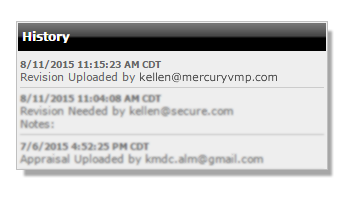 Related Articles: How to Send Appraisal Reports via SureReceipts in DataCourier
Outcome
After completing these steps, you will be able to request appraisal revisions directly through DataCourier and ensure revision requests are sent to the correct appraiser. You will also be able to track revision delivery, review updated files in the original record, and view revision activity in the DataCourier history for clear documentation and follow‑up.