Overview
Configuring your product list allows you to define and manage the specific appraisal services available to your clients through the VMP XSite. By customizing product descriptions, setting default fees, and mapping items to Mercury Network® products, you ensure that your order forms are accurate and easy to navigate. This centralized management helps you maintain consistent pricing across all fee tables, accommodate rush or complex requests.
How to Add, Edit, and Delete Products
You can add, edit, and delete products that are available to be ordered using your VMP XSite. To make these changes to your products:
Navigate to the top navigation bar and select Preferences.
Select VMP Client Order Setup in the drop-down menu.
If you have multiple VMP Clients connected to your Mercury Network® account, use the drop-down under VMP Client Portal to Mercury Network® to select the site for which you'd like to make changes.
Note: By default, the Product List is displayed. You can click Product List in the left sidebar at any time to return to this view.
When viewing the Product List, you can do several things:
If no products have been added, the Product Information panel on the right offers a hyperlink to add a list of the default. Click the hyperlink to add the following forms to your Product List:
Product List
FHA (1004)
Condo (1073)
FHA Condo (1073)
FHA Multi Unit (1025)
Multi Family Unit (1025)
Recertification (1004D)
Residential Appraisal (1004)
Condo Investment (1073, 1007, 216)
Exterior only Residential Report (2055)
Property Inspection for repairs (1004D)
FHA Condo Investment (1073, 1007, 216)
Single Family Investment (1004, 1007, 216)
Exterior Only Investment (2055, 1007, 216)
FHA Single Family Investment (1004, 1007, 216)
Condo Investment w/Comp Rent Schedule (1073, 1007)
FHA Condo Investment w/Comp Rent Schedule (1073, 1007)
FHA Single Family /w Comparable Rent Schedule (1004, 1007)
Single Family Investment w/Comparable Rent Schedule (1004, 1007)
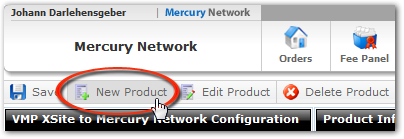
To add new products to the list individually, click New Product.
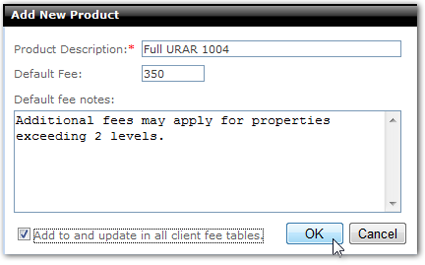
In the window that appears, enter a Product Description, the Default Fee for the product, and the Default Fee Notes that should be displayed when an order is placed for this product.
If you would like to add or update this product in all the fee tables where it appears (such as custom fee tables) check the box at the bottom of the window labeled Add to and update in all client fee tables.
When you're finished with the new product, click OK to add it to your product list.
In the list, use the Mercury Network® Product column to choose what product in Mercury Network® should be ordered when a client selects this product on your order form.
Click Save in the upper-left to commit your changes.
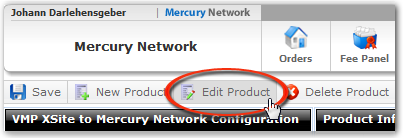
To edit a product, select that product in the list, then click Edit Product.
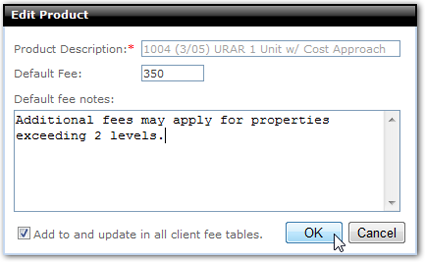
In the window that appears, you can change the Default Fee and edit the Default Fee Notes.
If you would like your changes to be reflected in all your fee tables where it appears (such as custom fee tables) check the box at the bottom of the window labeled Add to and update in all client fee tables.
When you're finished editing the product, click OK to save your changes.
Click Save in the upper-left to commit your changes.
To delete a product from the list, select that product, then click the Delete Product button.
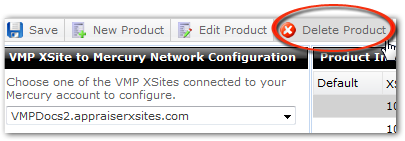
In the window that appears, click Yes or No to confirm/deny that you want to delete the selected product
Click Save in the upper-left to commit your changes. The selected product will be immediately removed, and this will be reflected in any fee tables where that product appeared.
For any product in the list, you can choose whether it should appear on the default order form your clients use to order appraisals on your VMP XSite. To choose which products should appear by default:
In the list of products, you'll see a Default column. If there is a green check in this column, it indicates the product will appear on the default order form. If there is no green check, it indicates that the product is available to be assigned to any fee table, but will not appear on the default order form.
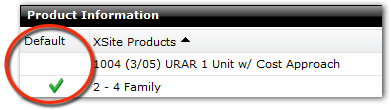
To place or remove the check mark, simply click in the column for the product you'd like to change.
Click Save in the upper-left to commit your changes.
You can add fees for Rush and Complex orders which will automatically be included in the overall fee for orders where those characteristics have been selected:
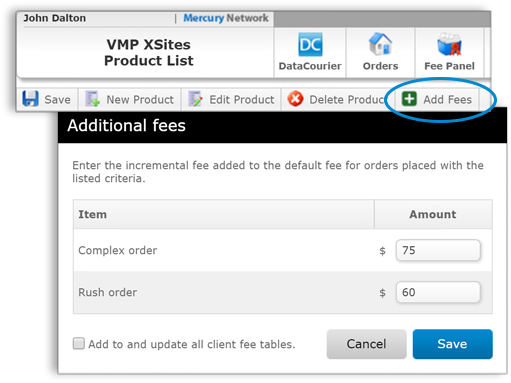
On the toolbar, click Add Fees.
In the Additional fees window that appears, enter the fees in the Amount field for Complex order and Rush order.
If you'd like these fees to be added to all of your client-specific fee tables, check Add to and update all client fee tables. If you're changing existing fees, checking this box will update that existing fee in all your client fee tables.
Click Save to add the fees.
Outcome
You have now established a comprehensive, organized product catalog that streamlines the ordering process. By automating fee applications and default form selections, you have reduced the need for manual price adjustments and minimized order entry errors. Your clients can now select from a clear, branded list of services, ensuring that every order is placed with the correct parameters and pricing from the start.