Overview
User account security in Mercury Network® can be managed differently depending on your role. Admin users have access to tools for managing other users, including locking accounts, forcing password resets, and updating security settings. Non‑admin users can still manage their own passwords and review account activity. This article explains how both admin and non‑admin users can access and update password and security options.
Admin Users
In the Users view, if you're the account admin or have the Add/manage User Accounts permission enabled, you'll see a list of users on the left. Any user with a grayed out profile icon to the left of the name indicates the user has not yet agreed to the End User License Agreement, and is not yet active. You can click any user (including yourself) to manage their information and settings.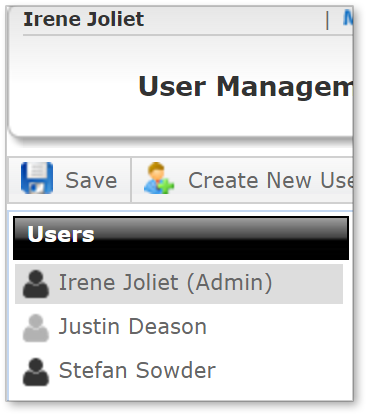
When you select a user, their information will be populated in the Contact Information section on the right. Here, you'll see a cog icon to the right of the Password field. Click it to access the user's security options.

In the Security options window, you'll see several options to manage the selected user's password:

If you've clicked the cog icon for any user besides yourself, you'll see the Lock and Expire today buttons. Click Lock to prevent the user from logging in. This is useful when you need to talk to a user before they access the account again.
If you've locked out a user, you'll be able to click Activate to restore their access to Mercury.
Click Expire today to force this user to reset their password at midnight of the same day. The user will see a prompt to change their password the next time they log in.
If you've clicked the cog icon next to your own name, you'll see different options. To change your own password, in the Update password section start by entering the current password, then enter and confirm the new password, then click Save.
If you want to see the passwords which you've just entered (to double check spelling) click Show passwords in the bottom left. When you do, the password will be unmasked in the Current, New and Confirm fields.

Non-admin users
If you don't have permission to add or manage users, you'll still be able to manage your own password.
Click Profile at the top.

In your Profile, click the cog icon next to your password:

Now, you can see your latest activity, your account status, and if there is a password expiration coming up.
You can also update your password. Just enter you current password, then enter and confirm the new password in the Update password section.
If you'd like to view the passwords you just entered (to check for spelling) click Show passwords in the bottom-left.

If you changed your password, be sure to click Save to keep your new one.
Related Article: How to Create User Accounts in Mercury Network®
Outcome
After completing these steps, you will know how to manage password and security settings based on your user permissions. Admin users will be able to lock or activate user accounts, force password resets, and update their own credentials. Non‑admin users will be able to review account activity, update their passwords, and understand upcoming password expirations, helping keep accounts secure and up to date.