Overview
When a revision is requested on a DataCourier appraisal, the revised file is ideally returned through DataCourier itself. However, if the appraiser delivers the revised file outside of the platform, you can manually upload it to the original DataCourier record. This article explains how to attach a revised MISMO XML file so your DataCourier records remain complete and up to date.
If you have requested a revision to a DataCourier appraisal, it's best if the appraiser delivers the revised file back to you via DataCourier. However, that might not always be the case. So, you can upload a revised file that you've received outside of DataCourier. Here's how it works.
In DataCourier, double-click the DataCourier file for which you intend to upload a revised file.
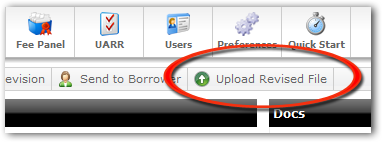
In the Property Details, click Upload Revised File on the toolbar.
Click Upload, then browse to the revised MISMO XML file.
Select the file and click Open, or simply double-click it to begin the upload.
When the upload is complete, you'll automatically return to your list of DataCourier files.
Outcome
After completing these steps, you will be able to upload a revised appraisal file to an existing DataCourier record. This ensures that all revisions are properly associated with the correct order and accessible within DataCourier, even when the revised file is received through an external method.