Overview
The Review Documents tab allows you to monitor, review, and manage documents that vendors upload to their profiles, such as licenses and insurance credentials. From this central location, you can quickly identify new or missing documents, review details provided by the vendor, and decide whether to accept the documents or request updates. This article explains how to access the Review Documents tab and use its tools to keep vendor documentation current and compliant.
Use the Mercury Network Contact candidates tool to request additional credentials and sample work from vendors on your Fee Panel candidate list. You can ask vendors to add documents such as E&O insurance, licenses, resumes, and appraisal samples to their Mercury profiles.
How to request vendor credentials and sample work
Click Fee Panel at the top.
Click the Candidate list tab.
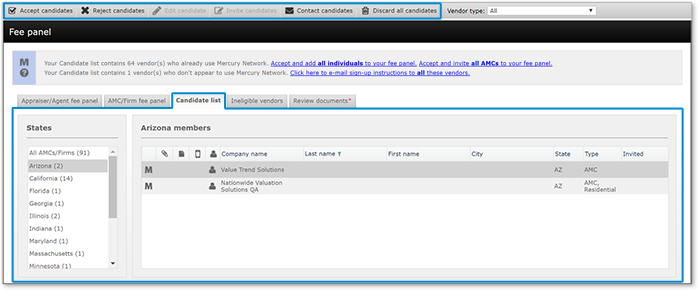
Click to select the vendors from which you want additional credentials and sample work. To select multiple vendors, hold down the Ctrl or Shift keys while you click.
Click Contact candidates in the top toolbar.
In the window that appears, edit the email message as needed. To insert placeholders for your contact information or the vendor’s information, use the My Fields and Contact Fields menus, respectively.
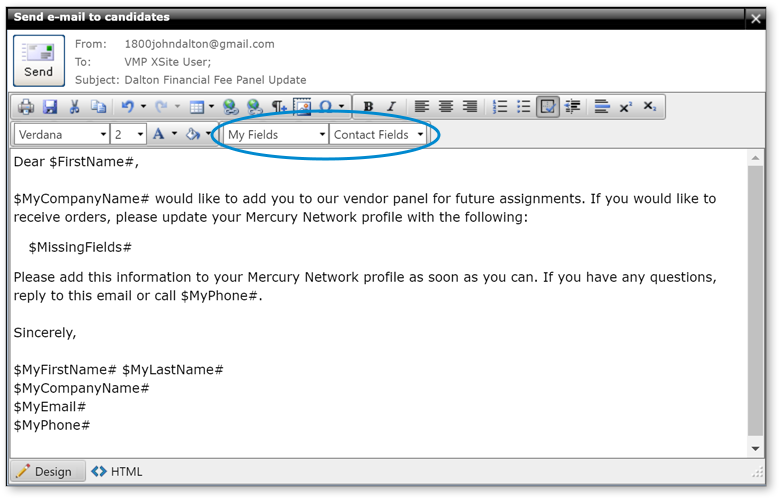
When finished, click Send to send your request.
Mercury Network sends the request to the selected vendor candidates and encourages them to update their profiles with the requested credentials or sample work.
Outcome
After you send the request, the selected vendors receive an email asking them to update their Mercury profiles with the requested documents. When vendors add their E&O insurance, licenses, resumes, or sample work, you can review the information as part of your Fee Panel candidate evaluation.