Overview
Order Routing Groups allow you to automatically route client orders to specific XSite users or groups of users for management. By creating Round Robin Groups or assigning a dedicated employee, you can control how incoming orders are distributed and ensure each client’s orders are handled by the appropriate team. This article explains how to create routing groups, assign clients to them, and manage default and individual routing options.
Each of your clients can be assigned to an Order Routing Group that you create. This lets you automatically assign that client's orders to a predetermined group of your XSite users - or a specific XSite user - who will manage those orders.
First, you'll need to create the Order Routing Group and assign some XSite users to it.
Access the Clients view in Mercury Network®.
Click Order Routing, and select Manage Round Robin Groups
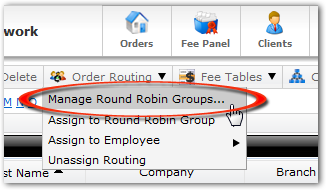
In the Round Robin Groups window that appears, you have a few options:
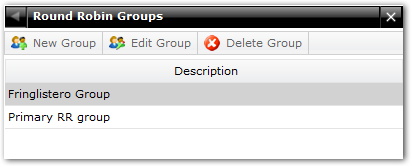
Click New Group to enter the description of a new Round Robin Group, then click Save to save the group so you can use it. You can also click Add User and select the XSite users who should be assigned to this group.
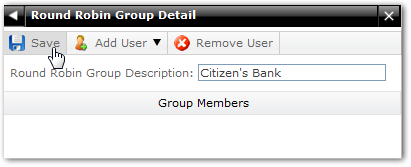
Select any group in the list and click Edit Group to change the description or add/remove users.
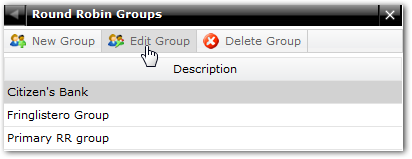
Select any group and click Delete Group to permanently remove the group.
Assigning Clients to a Round Robin Group
Once you've created a Round Robin Group, you can assign clients to it.
In the Clients view, click any contact which you'd like to assign to a Round Robin Group.
Click Order Routing, select Assign to Round Robin Group, then click the intended order group.
 Now the contact will display the routing assignment in the Order Routing column.

Any Order Routing Group can be set as the default group. This means that anyone who logs into your XSite to place an order - but who is not assigned to a specific Order Routing Group - will be assigned based on the Order Routing Group you marked as the default.
Setting a Default Routing Group
To set any Order Routing Group as the default...
In the Clients view, click Order Routing.
in the Round Robin Groups window, check the box indicating which group should be the default Order Routing Group.

When you check the box, your changes are saved immediately. Simply click the X in the upper right corner to close the window.
Another option is to assign a client to one specific XSite user - which is perfect if one of your clients has a dedicated representative or account manager.
Assigning a Specific Employee to a Client
In the Clients view, select the contact you'd like to assign to a specific employee.
Click Order Routing, select Assign to Employee, then select the intended employee.

Now, the contact will display the employee assignment in the Order Routing column.

Undoing Assignments
In the Clients view, select any contact that is currently assigned to a Round Robin Group or an employee.
Click Order Routing, then select Unassign Routing.
Outcome
After completing these steps, you will be able to create and manage Order Routing Groups, assign clients to round‑robin groups or specific employees, and set a default routing group for unassigned users. You will also know how to update or remove routing assignments, giving you flexible control over how client orders are distributed and managed within Mercury Network®.